![Screenshot 2025-02-20 104356.png]](https://employeekb.persimmony.com/hs-fs/hubfs/Screenshot%202025-02-20%20104356.png?height=40&name=Screenshot%202025-02-20%20104356.png)
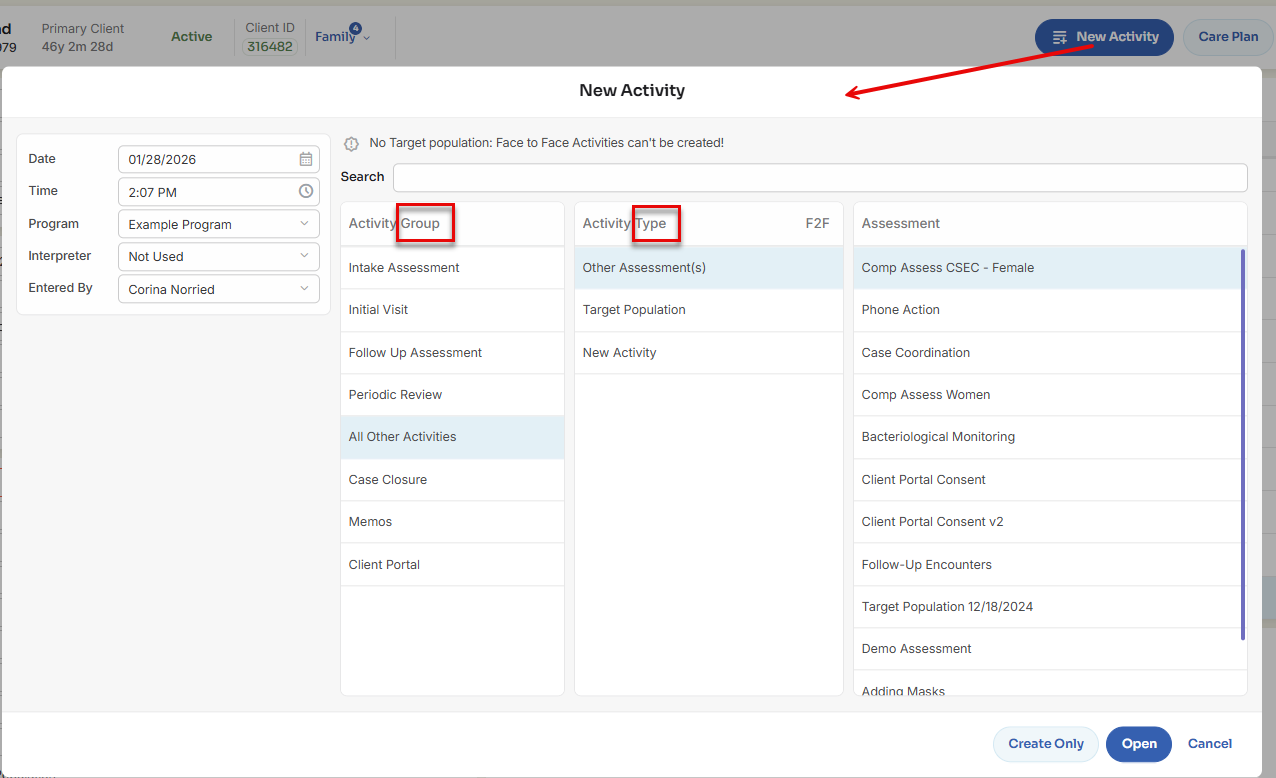
Activity Groups define the categories users see first, while Activity Types determine the specific actions users can select and document.
Important: Configuration options are permission-based. If you do not see an option described below, contact your supervisor or program administrator.
Understanding Activity Groups
Activity Groups act as containers that organize Activity Types in the New Activity pop-up. Grouping activities helps users quickly locate the correct option when documenting services or notes.
Common examples include:
-
Assessments
-
Memos
-
Initial Visits
-
Referrals
Where to Manage Activity Groups
Navigate to:
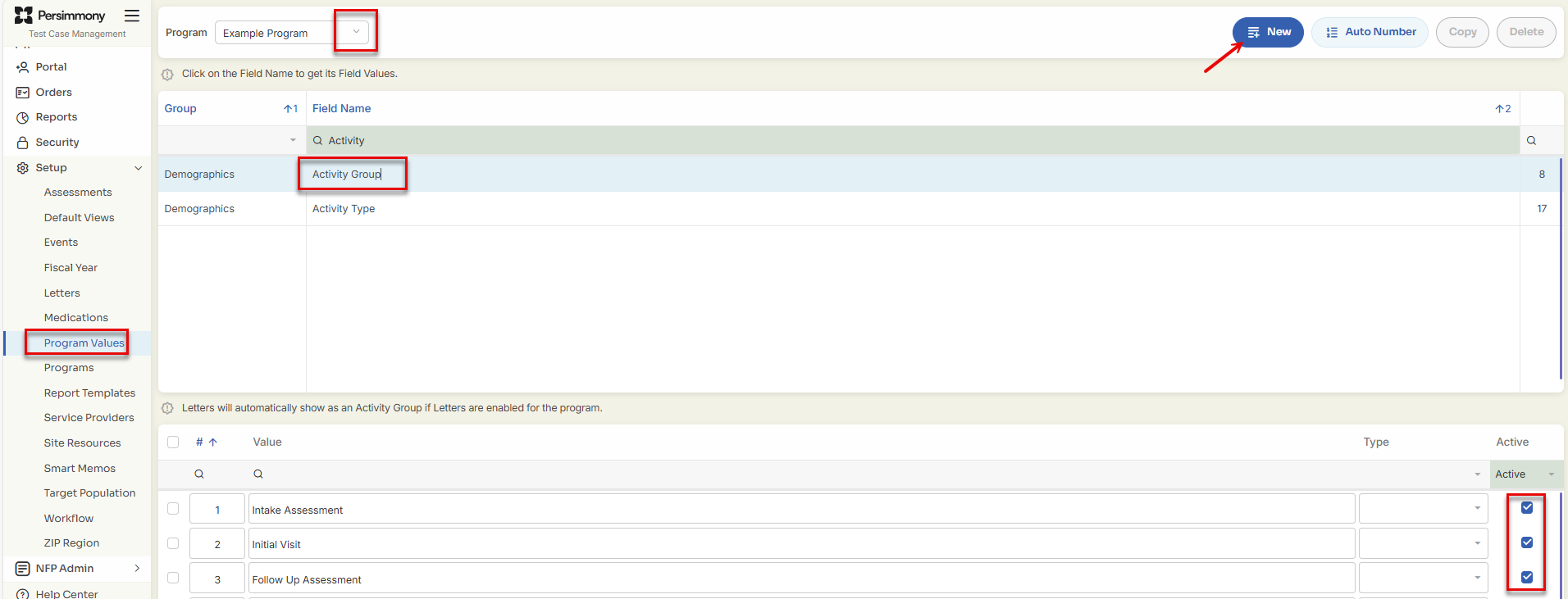
Setup > Program Values > Activity Groups
From here, you can:
-
Add new Activity Groups
-
Edit existing Activity Groups
-
Deactivate Activity Groups that are no longer needed
Understanding Activity Types
Activity Types represent the specific actions users can log for a client, such as a service visit, memo entry, or assessment.
Each Activity Type must:
-
Belong to an Activity Group
-
Be enabled for the program
-
Have a defined function (Memo or Assessment)
Managing Activity Types
Accessing Activity Types
Navigate to:
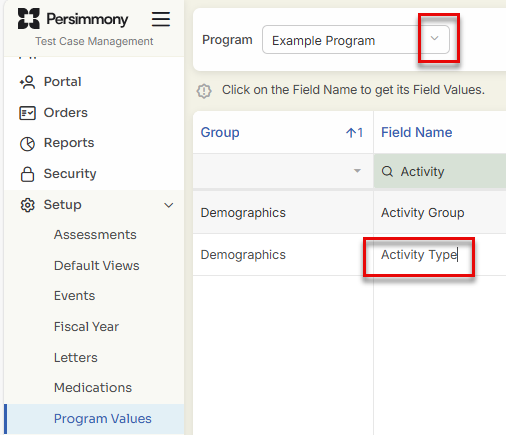
Setup > Program Values > Activity Type
Adding a New Activity Type
From the Activity Type list:
-
Select New Value
-
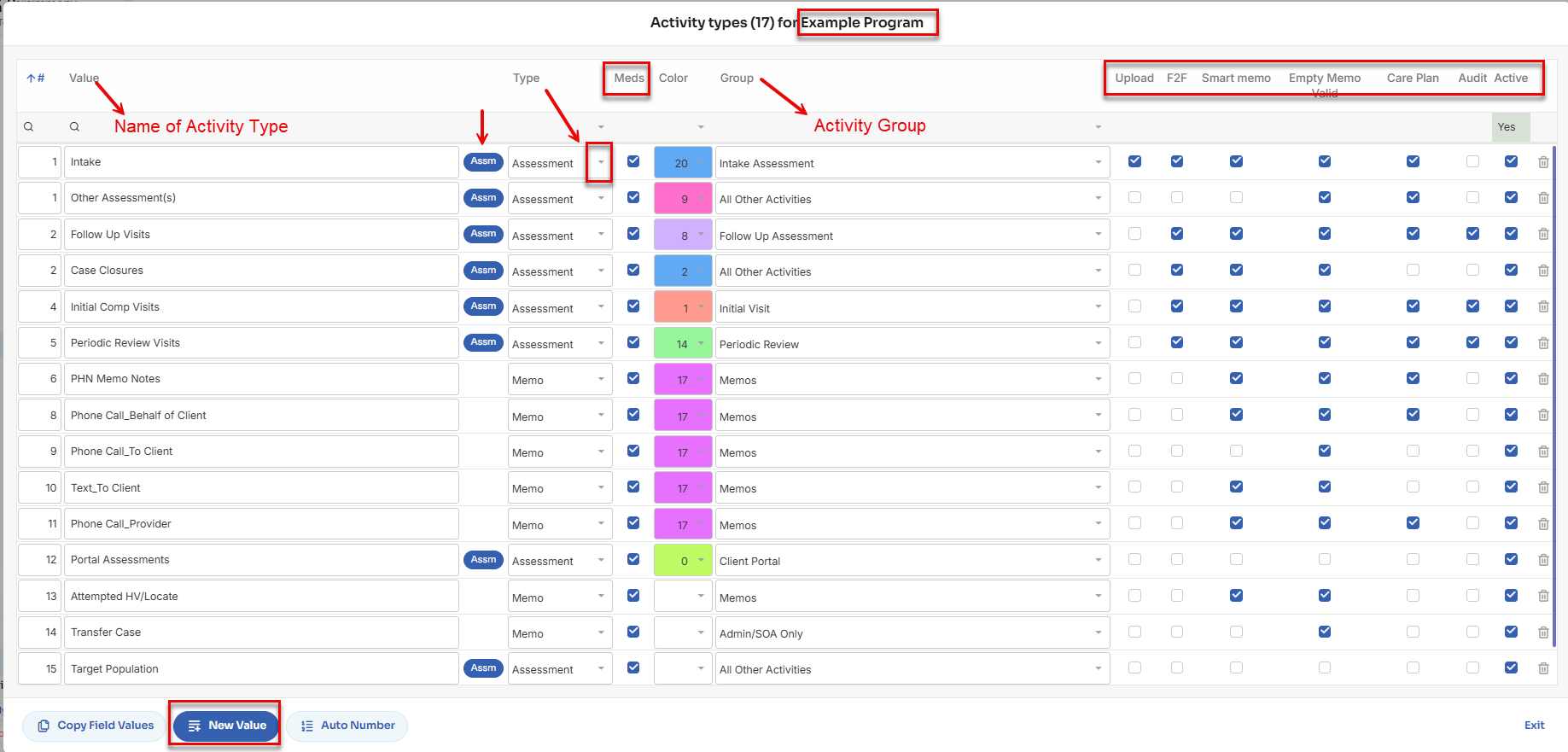
Enter the name of the Activity Type
-
Save the new value
Once created, the Activity Type can be configured using the same options described below.
Editing an Existing Activity Type
To update an Activity Type:
-
Locate the row containing the Activity Type name
-
Enable or disable available options by selecting the appropriate checkboxes
-
Select a Type from the dropdown
-
These options are configured specifically for your site
-
-
Choose the appropriate Group from the dropdown to control where the Activity Type appears in the New Activity pop-up
Assigning Assessments to Activity Types
If the Activity Type is used for assessments:
-
Select the Assm button
-
Choose the assessment(s) that should be associated with this Activity Type
Only assigned assessments will appear when users select this Activity Type in the Client Profile.
See Activity Types in the Assessments Setup section for more detailed information.
Activity Type Settings Explained
When creating or editing an Activity Type, its function determines how it behaves for users.