![Screenshot 2025-02-20 104356.png]](https://employeekb.persimmony.com/hs-fs/hubfs/Screenshot%202025-02-20%20104356.png?height=40&name=Screenshot%202025-02-20%20104356.png)
1. Upload
- Purpose: Utilized primarily for TCM billing.
- Functionality: When both Upload and F2F options are enabled, the activity is marked as Billable based on the outcomes of the Target Population assessment.
2. Face-to-Face (F2F)
- Purpose: Identifies activities that occur directly with clients.
- Functionality:
- If both Upload and F2F are active, the activity is deemed Billable using the Target Population assessment results.
- F2F activities are restricted (not shown or creatable) if there is no Target Population or if the activity date falls outside the current enrollment period.
3. Smart Memo
- Purpose: Streamlines documentation.
- Functionality: Activities must have this option enabled to appear in the Smart Memo creation section under Setup > Smart Memos.
4. Empty Memo Valid
- Purpose: Ensures integrity in activity documentation.
- Functionality: Activating this option allows for tracking updates in assessment memos. Any discrepancies or errors trigger notifications within the Enrollment > Errors dialog once an assessment is closed.
5. Care Plan
- Purpose: Facilitates comprehensive care management.
- Functionality: Must be enabled to allow the creation of new Action and Follow-up memos within a Care Plan associated with the selected activity.
6. Audit
- Purpose: Ensures compliance and quality control.
- Functionality: Only activities marked with this option are visible to auditors, essential for NFP assessments.
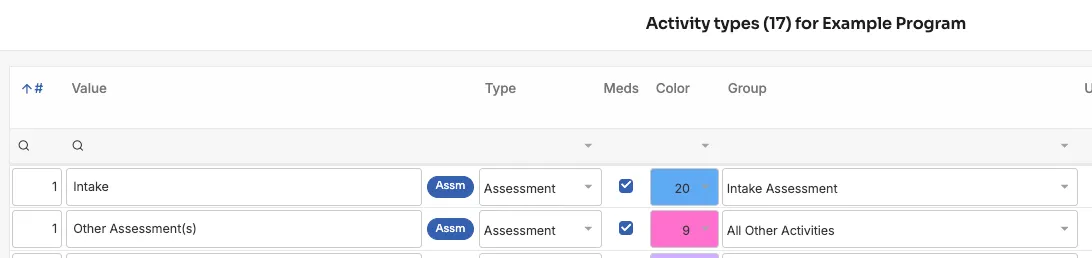
7. Color
- Purpose: Allows conditional color-coding of the Activity List in the client profile.
- Functionality: By default, all activity types will show in black font. To change the color of the font, select from the drop-down menu.
Understanding these settings helps in correctly configuring activities to meet specific needs and regulatory requirements, ensuring effective management and reporting within the ECM framework.