![Screenshot 2025-02-20 104356.png]](https://employeekb.persimmony.com/hs-fs/hubfs/Screenshot%202025-02-20%20104356.png?height=40&name=Screenshot%202025-02-20%20104356.png)
Add New Program Values
-
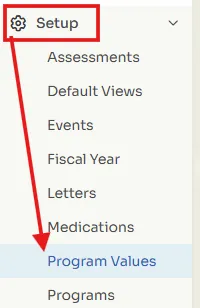
Go to Setup > Program Values.
-
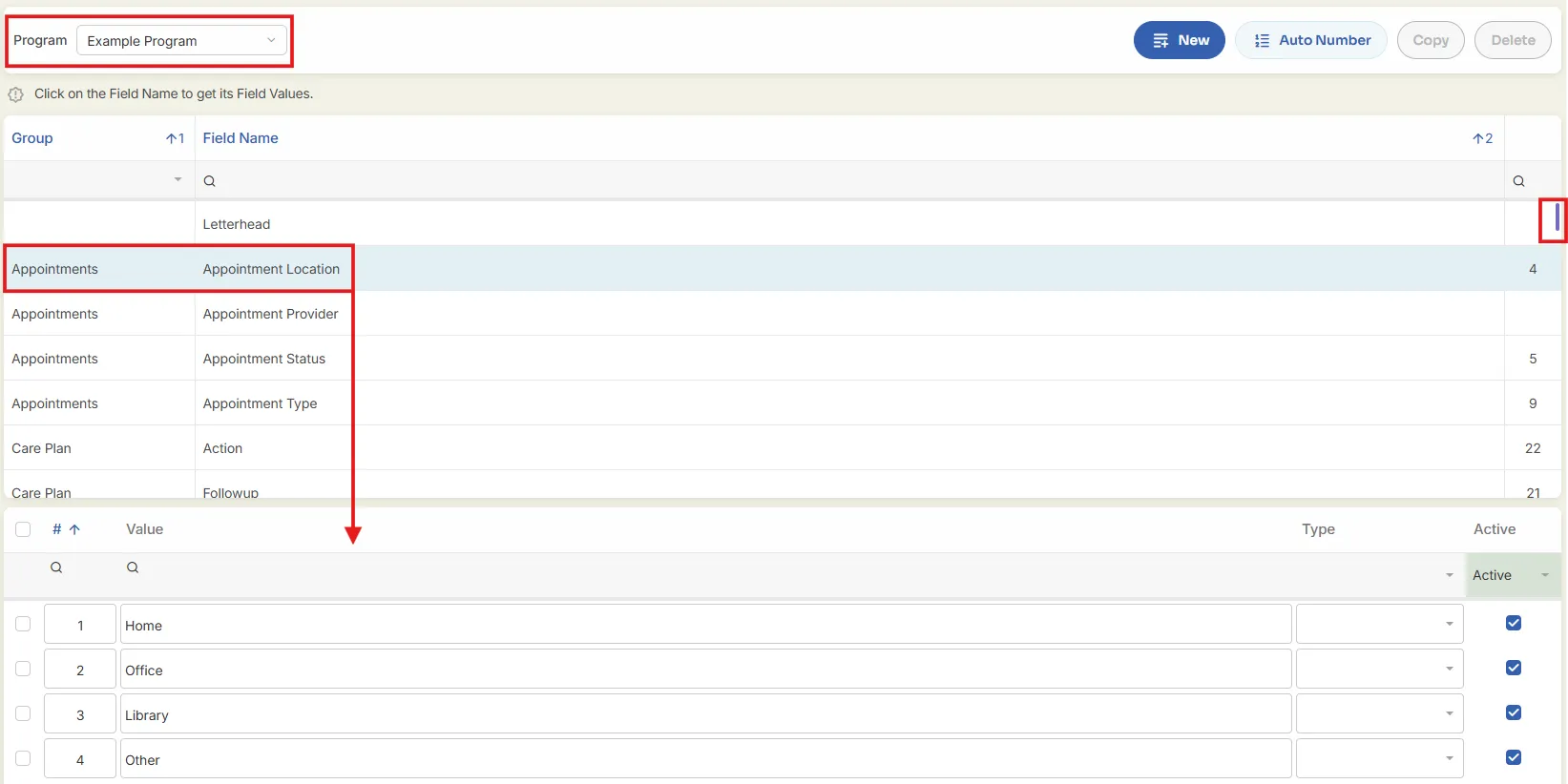
Use the Program filter to select the relevant program.
-
Scroll through the list to find the Group or Field you want to edit.
-
Click the Group/Field name to open the list of values.
-
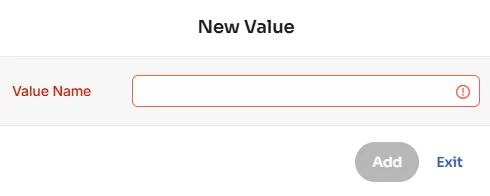
Click New to open the value entry pop-up.
-
Enter your new value.
⚠️ Important: All values must be unique. Adding a value that already exists (even with extra spaces) will result in an error.
-
Click Add to save. Repeat this process to add additional values.
-
When finished, click Exit to close the pop-up.
Continue adding additional values as needed by selecting the New button and repeating the process. For more detail, refer to: Activity Types: Detailed Overview of Column Values in Setup
Add Activity Types
To add a new Activity Type in the Demographics: Activity group:
-
Go to Setup > Program Values
-
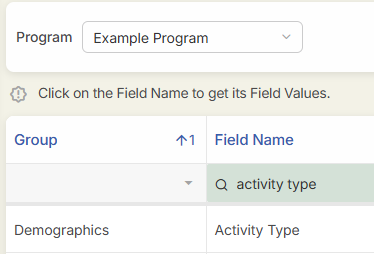
Locate and select Demographics >Activity Type
-
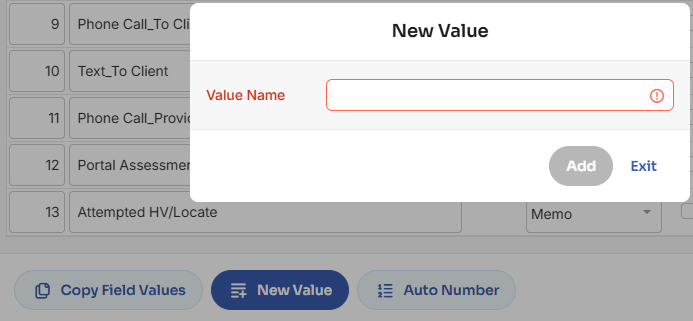
Click New Value.
-
Enter a unique name and click Add.
⚠️ Important: Names must be unique across all Activity Types.
-
Locate your new Activity Type at the bottom of the list and complete required fields:
-
Type (Required)
-
Assessment: Add to an assessment.
-
Internal Program Memo: Reserved for administrators and program managers.
-
Memo: For general client work documentation.
-
-
Group (Required): Select the appropriate Activity Group.
-
-
If Type = Assessment, click the Assm button to assign assessments.

-
Select assessments to associate with the activity.
-
Click Add, then Exit.
-
Optional fields:
-
Meds: Enables access to client medication records.
-
Color: Choose a display color for this activity in the calendar.
-
-
Click Exit to close and save.
Add Diagnoses
To add new Diagnoses in the Demographics: Diagnosis group:
-
Go to Setup > Program Values
-
Locate and select the field name Diagnoses
-
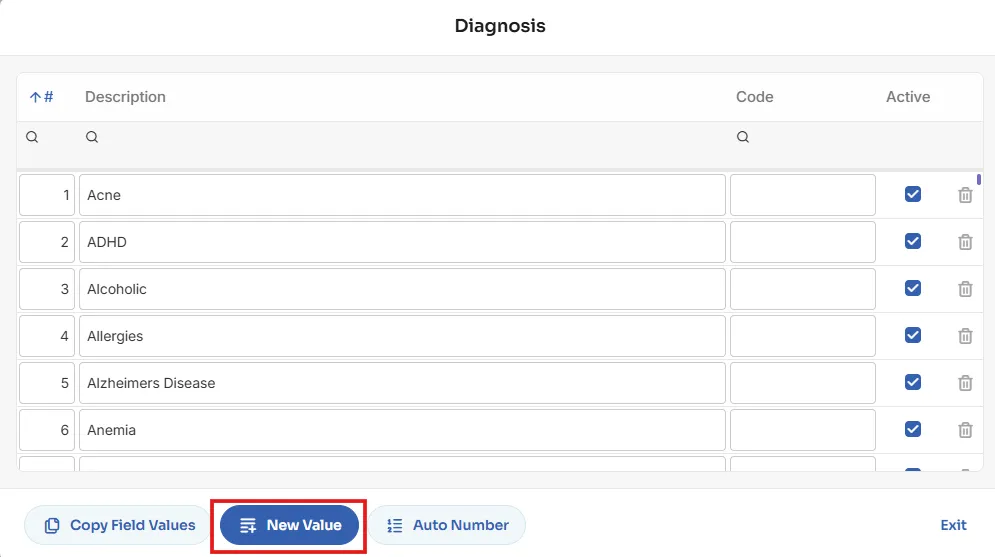
Click New Value.
-
Enter a unique diagnosis description and click Add.
⚠️ Important: Each diagnosis entry must be unique.
-
Repeat for additional entries as needed.
-
Click Exit when done.
Notes
-
Only users with Setup permissions can manage Program Values.
-
Related guides for further reference: