![Screenshot 2025-02-20 104356.png]](https://employeekb.persimmony.com/hs-fs/hubfs/Screenshot%202025-02-20%20104356.png?height=40&name=Screenshot%202025-02-20%20104356.png)
Overview
Use this workflow when:
-
Completing an assessment that may lead to updates in the Care Plan
-
Adding actions, resources, or memos based on a client’s identified needs
-
Ensuring each Care Plan update is tied to the correct Activity Date
Steps to Document Assessments and Update the Care Plan
-
Open the Client Profile
-
Locate and open the client from the Client List.
-
Navigate to the appropriate assessment and open it.
-
-
Unlock and Review the Assessment
-
Use the lock toggle to unlock the assessment for editing.
-
Review the questions and responses to identify areas tied to client needs.
-
-
Open the Care Plan
-
Click the Care Plan button to launch it in a separate window.
-
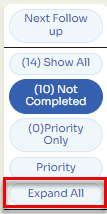
Use the Expand All feature to display all details at once.
-
-
Confirm the Activity Date
-
Check the Activity Date in the assessment. This date links any Care Plan updates you make during this session.
-
-
Review Key Sections in the Care Plan
-
Assessment Memos
-
Identified Needs
-
Linked Resources
-
Updating the Care Plan
-
Update an Existing Problem/Need
-
Find the relevant item in the Care Plan.
-
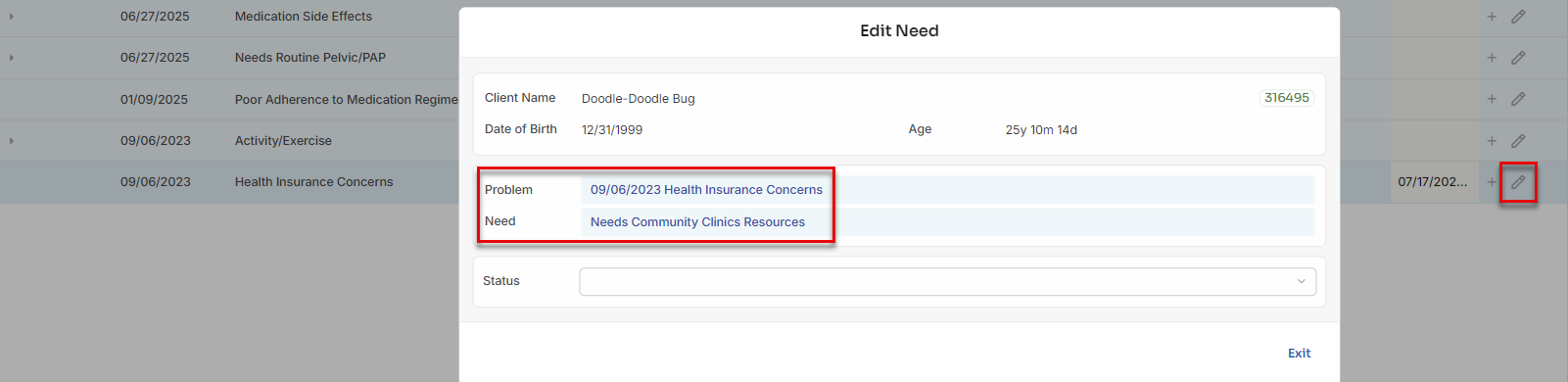
Click the Edit icon to view or update actions and notes.
-
-
Add a New Action or Follow-Up
-
Select the related resource or need.
-
Click the New Action icon.
-
Choose the appropriate action and confirm that it links to the current assessment.
-
Click Add to save.
-
-
Add Notes for Non-TCM Needs
-
Use the New Memo icon to add a free-text note.
-
The memo automatically links to the assessment and reflects its Activity Date.
-
Cautionary Notes
-
Select the Correct Assessment and Date
-
Always confirm that new actions or memos are linked to the correct activity.
-
-
Avoid Data Loss
-
Double-check before editing or deleting existing items in the Care Plan.
-
-
Accuracy Matters
-
Mistakes in dates or mismatched links can impact client care and reporting.
-
Tips for Working Efficiently
-
Use Two Windows
-
Keep the Assessment and Care Plan open side by side for easier cross-referencing.
-
-
Use Expand All
-
Quickly view the full Care Plan by clicking Expand All.
-
-
Check the Edit Icon History
-
Use the Edit feature to review when actions or resources were last updated — and by whom.
-
By using dual tabs, you can streamline your workflow by documenting assessments and updating care plans simultaneously. This ensures that care plans reflect the latest assessment data, improving efficiency and accuracy.