![Screenshot 2025-02-20 104356.png]](https://employeekb.persimmony.com/hs-fs/hubfs/Screenshot%202025-02-20%20104356.png?height=40&name=Screenshot%202025-02-20%20104356.png)
Video Walkthrough
Adding a Follow-Up Assessment
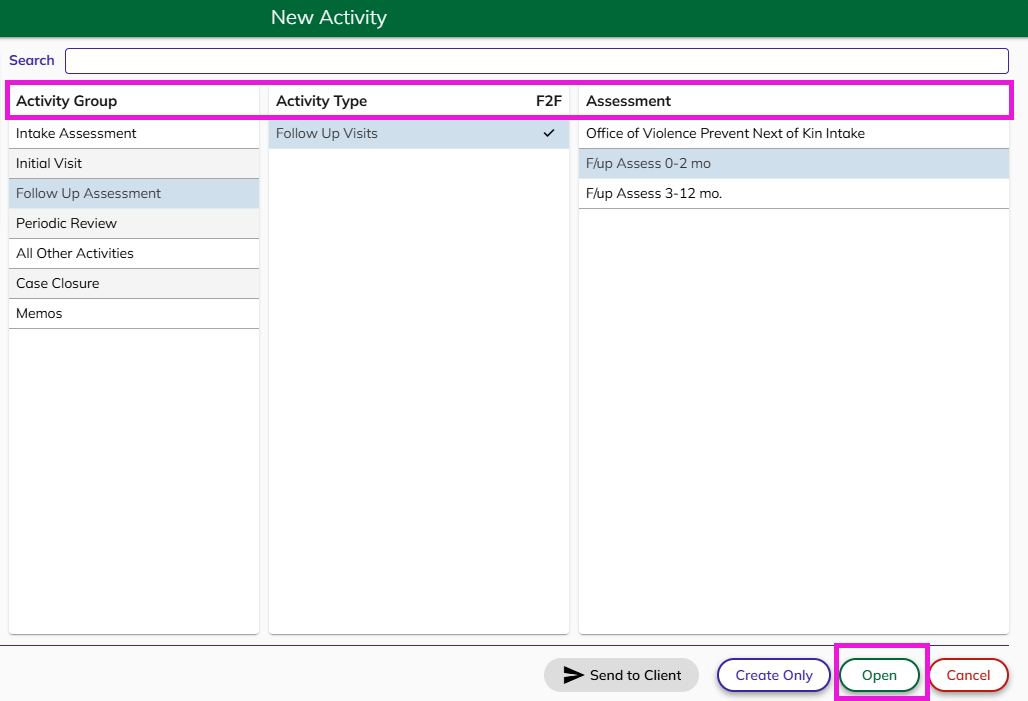
- Navigate to the Client Profile where you have activities already added in the activity list.
- Click the New Activity button.
- Select the appropriate Activity Group, Activity Type, Assessment and click Open to proceed.
Using the Copy Answers Feature
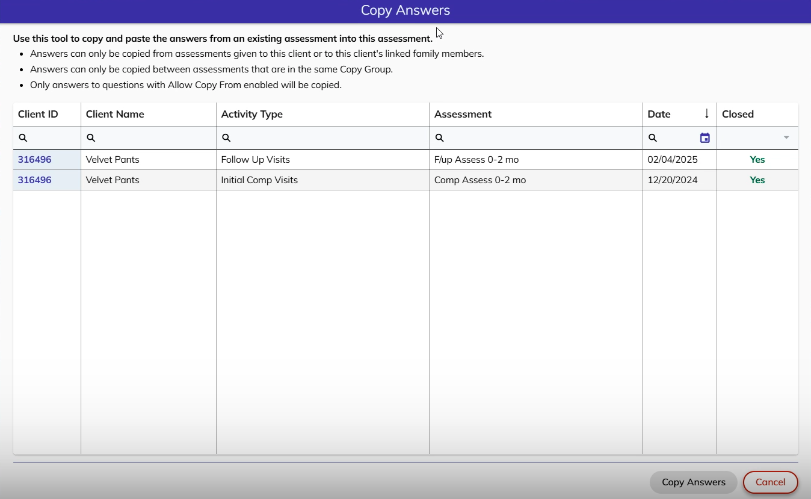
- The Copy Answers pop-up will appear.
- Important Note: Not all assessment answers or memos are set to copy. This is determined by your Program Supervisor or Manager.
- If you believe a specific assessment question or memo should be included in the Copy Answers function, consult your Program Manager or Supervisor.
Selecting an Assessment to Copy
- Review the instructions at the top of the Copy Answers pop-up.
- Select an assessment by checking the assessment date.
- Click Copy Answers to proceed.
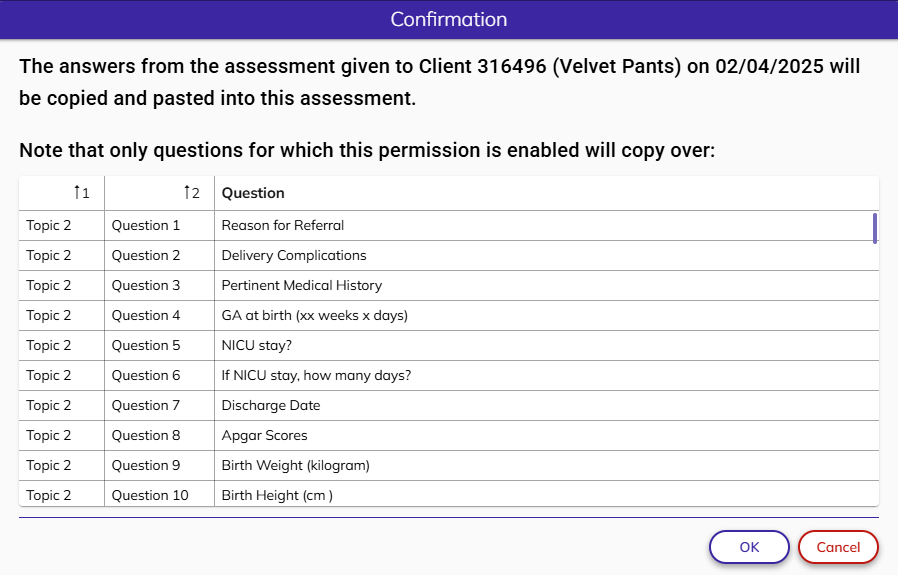
- A list of answers set to copy will be displayed.
- To cancel, click Cancel.
- To continue, click OK.
Reviewing and Editing Copied Memos
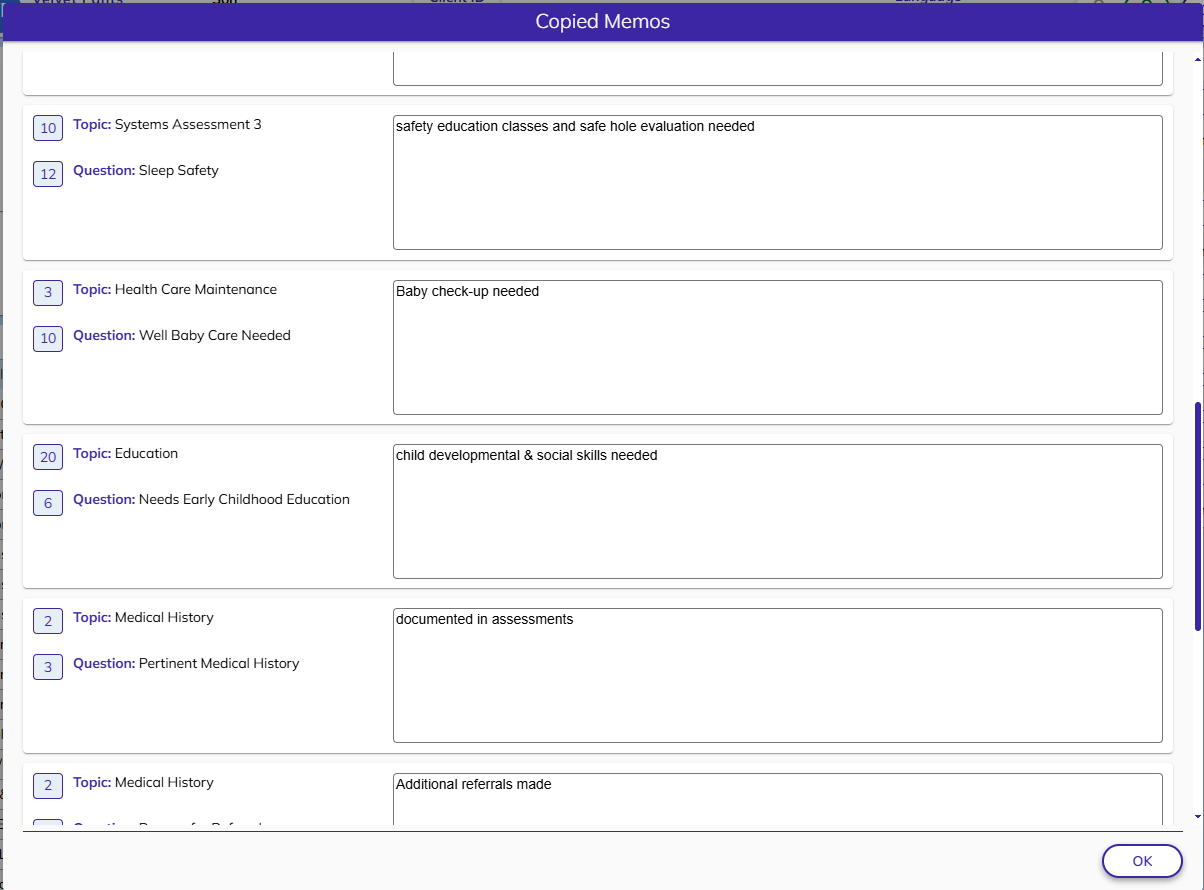
- The Copied Memos pop-up will display the copied assessment memos.
- Each memo includes the Topic, Question, and Previous Memo.
- You can edit a copied memo by:
- Adding additional text.
- Deleting unnecessary information.
- If a scroll bar is not visible, all copied memos are displayed within the pop-up.
- Scroll down to review all topics, questions, and copied memos.
- Click OK to finalize the process.
Finalizing the New Assessment
- The New Assessment will open with both copied answers and memos.
- You can still:
- Edit assessment answers.
- Add or delete memos as needed.
- Make any necessary refinements before saving.
Conclusion
By following these steps, you can efficiently copy assessment answers and memos while making necessary updates. If you encounter any issues, consult your Program Manager or Supervisor for assistance.