![Screenshot 2025-02-20 104356.png]](https://employeekb.persimmony.com/hs-fs/hubfs/Screenshot%202025-02-20%20104356.png?height=40&name=Screenshot%202025-02-20%20104356.png)
Closing Assessments
How do I close an assessment?
To close an assessment:
-
Open the assessment from the Activity List on the Client Profile
-
Review each topic in the assessment:
-
A green checkmark indicates all required questions in that topic are complete
-
No icon means at least one required question is still unanswered
-
-
Once all topics show a green checkmark, select Close Activity
After the assessment is closed, the Close column in the Activity List will display Yes.
What do the values in the Close column mean?
In the Activity List on the Client Profile, the Close column shows the assessment’s closure status:
-
No
The assessment is configured to require closure but has not yet been closed. -
Yes
The assessment has already been closed. -
N/A
Either:-
The activity is not an assessment, or
-
The assessment is not configured to require closure.
-
Why isn’t there an option to close an assessment?
If you do not see Close Activity or Finish and Close Activity inside the assessment:
-
Check the Close column in the Activity List
-
If it displays N/A, the assessment does not require closure
-
These assessments can still be completed, but you’ll use the Back button to exit when finished
What happens if I try to close an incomplete assessment?
If required questions are unanswered:
-
A notification will appear when you attempt to close the assessment
-
Depending on your permissions, the system may prevent closure until all required fields are completed
The system says there are unanswered questions, but I completed everything. What should I do?
This can occasionally happen due to a navigation or sync delay.
-
Reopen the assessment
-
Select Finish and Close Activity again
How do I know which assessments still need to be closed?
Assessments that require closure but are still open will appear in the:
-
Clients with activities to close section of the Case Manager Alerts widget
This helps case managers quickly identify assessments that need follow-up.
Additional Resource: How to Configure your Dashboard Alerts
Where can I see when an assessment was closed?
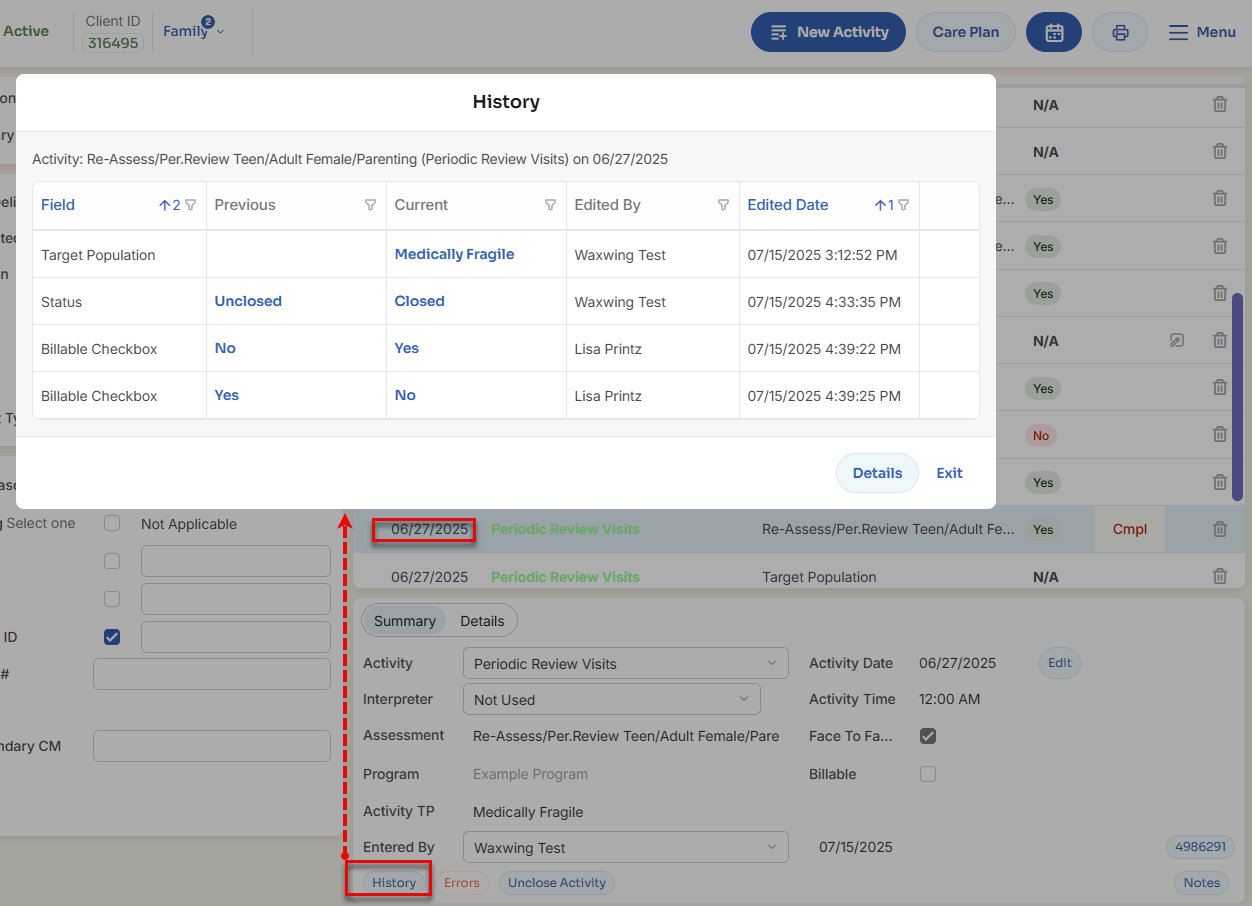
Closure details are available in the History pop-up for the assessment, which shows:
-
Status change from Unclosed to Closed
-
Date and time of the change
-
User who completed the action
Editing Assessments
Why can’t I edit the contents of an assessment?
There are several common reasons editing may be restricted:
-
The assessment is locked
-
Many assessments include a lock toggle at the top
-
Unlock the assessment to allow editing
-
-
Conditional logic is applied
-
Some questions automatically lock based on responses to other questions
-
This behavior is configured in Setup > Assessments and managed by administrators
-
-
Read-only access
-
If your permissions are read-only for the client, editing is not allowed
-
-
The assessment has been billed
-
Once tied to billing, an assessment becomes locked and cannot be modified
-
Assessment Availability
Why can I see an assessment for one client but not another?
Assessment availability is driven by configuration rules. Common reasons include:
-
Client age
The client does not fall within the configured age range. -
Once per enrollment
The assessment is limited to one instance per enrollment and already exists for that client. -
Program availability
The client is enrolled in a program where the assessment is not enabled. -
Activity Group or Activity Type
Assessments only appear under the specific Group and Type they are configured for.
Additional Resource: Activity Types
Assessment Dates
What do the different dates on an assessment mean?
Each assessment includes multiple dates that serve different purposes:
-
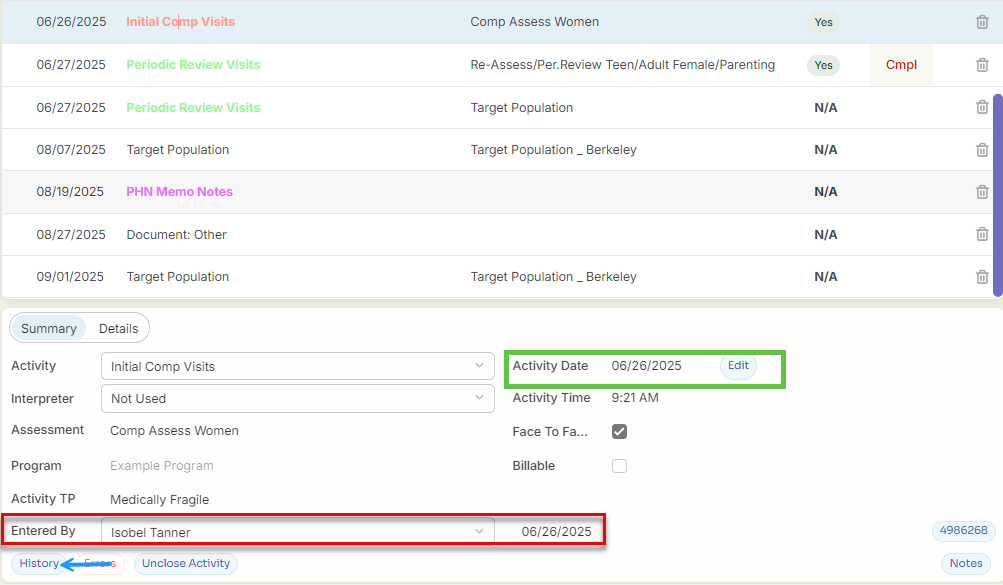
Entered Date
-
System-generated when the activity is created
-
Cannot be edited
-
Reflects when the record was entered into the system
-
-
Activity Date
-
Editable
-
Represents when the activity actually occurred
-
Commonly used for:
-
Entering data from paper forms
-
Retroactive documentation (for example, a past phone call)
-
-
-
Closed Date
-
Visible in the History pop-up
-
Shows when the assessment was marked Closed
-
Applies only to assessments configured to require closure
-
Summary
Assessments in Suite ECM follow clear rules around completion, closure, editing, and availability. Understanding closure requirements, lock behavior, and configuration-driven visibility can help you troubleshoot issues quickly and keep client records accurate and up to date.