![Screenshot 2025-02-20 104356.png]](https://employeekb.persimmony.com/hs-fs/hubfs/Screenshot%202025-02-20%20104356.png?height=40&name=Screenshot%202025-02-20%20104356.png)
Requesting Client Portal Activation
Only site administrators who manage the Persimmony contract may request activation. To request activation, contact Persimmony Support and include:
-
The contact name to display in outgoing text messages
-
A subject line for Client Portal email notifications
-
Custom message text for both email and text messages
Tip: These settings apply site-wide across all programs using the Client Portal.
Granting Access via Security Settings
To allow users to send assessments through the Client Portal:
-
Go to Security > User Group
-
Use the User Group dropdown to select a group
-
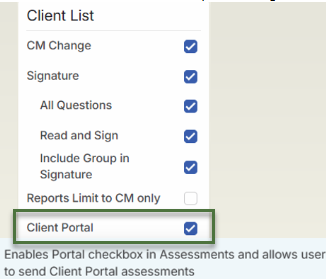
In the Client List Permissions section, check the Client Portal box
-
Repeat for each group that needs access
Configuring Assessments for Portal Use
-
Go to Setup > Assessments
-
Select the assessment to configure
-
Confirm all Answer Types are valid:
-
Check Box
-
Combo
-
Date
-
Memo
-
Number
-
Text
-
Spacer
-
-
Under Required Fields:
-
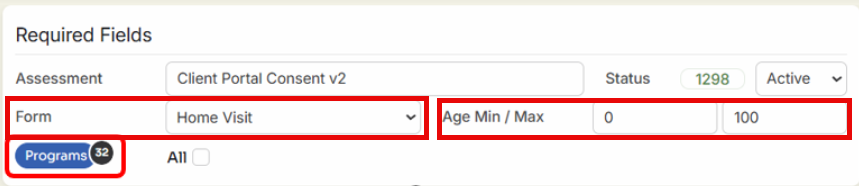
Set Form Field to Grid, Home Visit, or Dental
-
Enter Age Min / Max values
-
-
Click Programs and assign the correct program(s)
-
In Optional Fields, check the Portal box
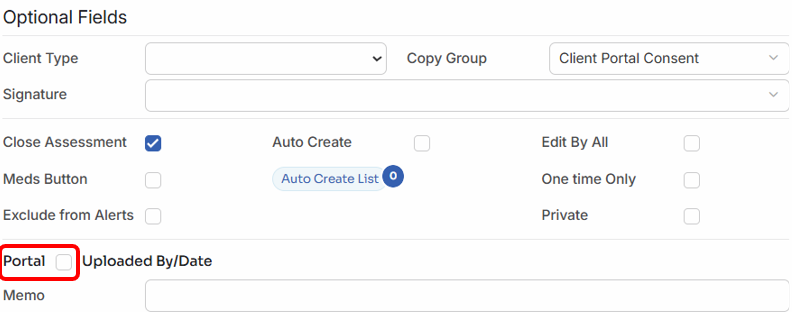
Tip: Once enabled for Portal, the assessment is locked. To make changes, uncheck the Portal box, make your edits, and re-enable.
Setting Up Program Values
-
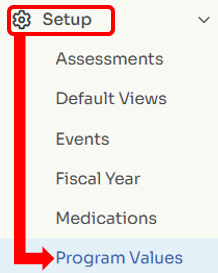
Go to Setup > Program Values
-
Select the appropriate program
-
Under Demographics, choose Activity Group, then click New Value
-
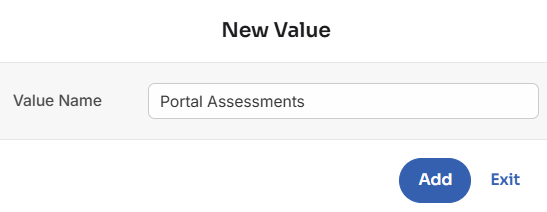
Enter a name and click Add
-
-
Under Demographics, choose Activity Type, then click New Value

-
Enter a name and click Add
-
Set Assessment/Memo to Assessment
-
Click Assm and select all assessments that should appear under this Activity Type
-
Use the Group dropdown to assign an Activity Group

Repeat this setup for each program using the Client Portal.
Sending Assessments to Clients
-
Open a Client Profile
-
Click New Activity
-
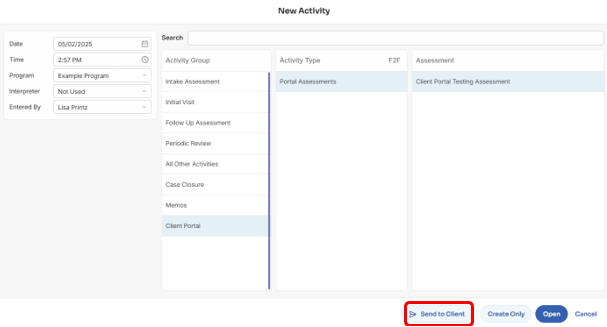
Select the correct Activity Group and Activity Type
-
Click Send to Client
-
In the Send Assessment to Client window:
-
Choose Email or Text Message
-
Edit Subject, Expiration Time, or Message if needed
-
Click Send
-
-
Confirm by clicking Yes
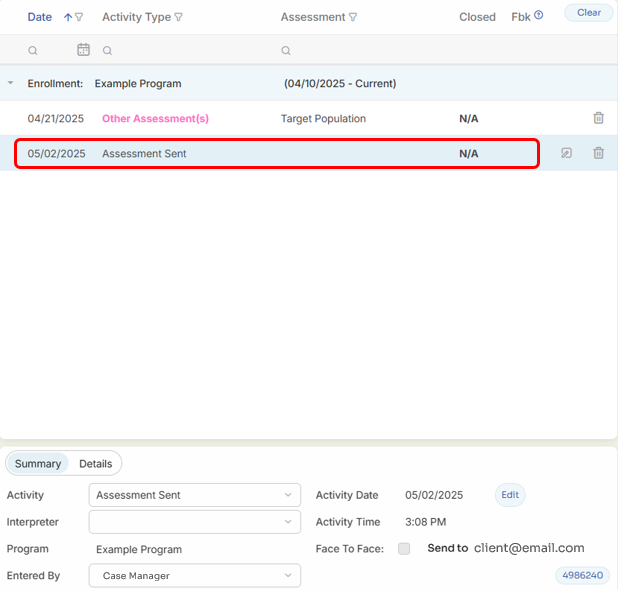
A memo will be added to the Activity List showing the name of the assessment sent.
Receiving Completed Assessments
-
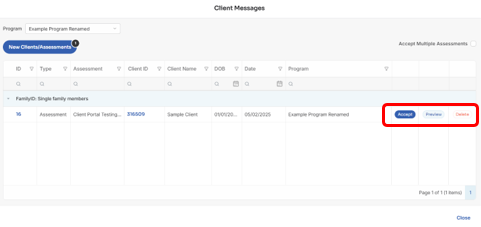
From the Client List, click Client Messages

-
Locate the returned assessment
-
Choose one of the following:
-
Preview to view the content
-
Accept to add the assessment to the client’s Activity List
-
Delete to remove it
-