![Screenshot 2025-02-20 104356.png]](https://employeekb.persimmony.com/hs-fs/hubfs/Screenshot%202025-02-20%20104356.png?height=40&name=Screenshot%202025-02-20%20104356.png)
1. Understanding the Errors in Enrollment Pop-Up
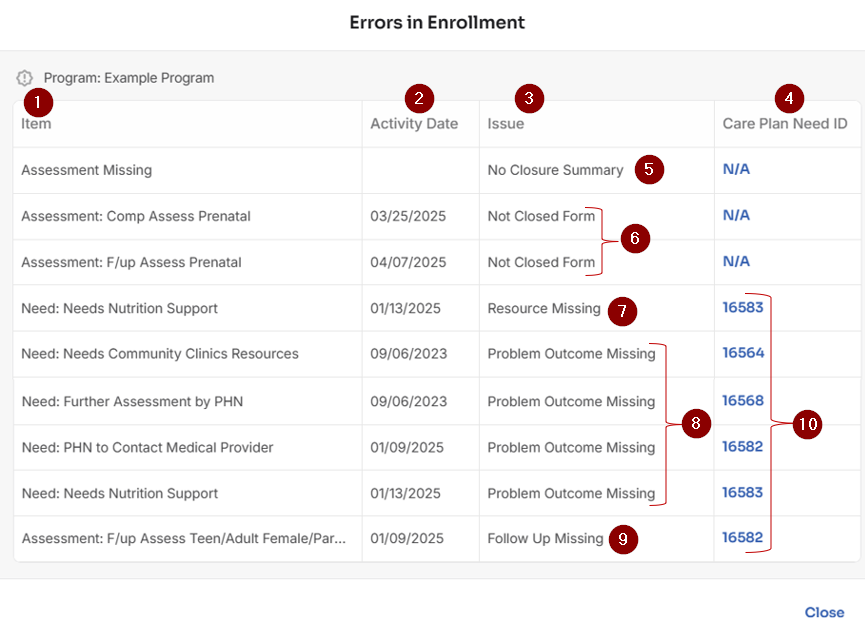
When the system detects errors, it will generate a pop-up with the following columns:
-
Item: Identifies the charting item that requires correction.
-
Activity Date: Indicates when the item was charted.
-
Issue: Describes the error that needs to be addressed.
-
Care Plan Need ID: Displays a unique ID if the error is tied to a Care Plan issue.
2. Common Error Messages and Their Meanings
❌ No Closure Summary
-
What it means: The client’s program requires a Closure Summary assessment, and one has not been added.
-
Action: Add the Closure Summary to the client’s enrollment, complete it, and mark it closed.
❌ Not Closed Form
-
What it means: An assessment in the client’s chart is still open.
-
Action: Locate the assessment using the Item and Activity Date fields, complete all required fields, and close it.
❌ Resource Missing
-
What it means: A Care Plan need is missing a Resource.
-
Action: Go to the Care Plan using the Need ID, locate the need, and assign a Resource.
❌ Problem Outcome Missing
-
What it means: A Care Plan need is missing a Problem Outcome.
-
Action: Go to the Care Plan using the Need ID, locate the need, and assign a Problem Outcome.
❌ Follow Up Missing
-
What it means: A Care Plan need is missing a Follow-Up.
-
Action: Go to the Care Plan using the Need ID, locate the need, and add a Follow-Up.
3. Using the Care Plan Need ID
If a Care Plan Need ID appears in the pop-up:
-
Navigate to the Care Plan section of the Client Profile.
-
Use the ID number to find the exact need or issue that requires attention.
4. Summary of Actions to Take
| Issue Type | Action Required |
|---|---|
| No Closure Summary | Add and complete a Closure Summary assessment |
| Not Closed Form | Locate the form, complete all required questions, and close it |
| Resource Missing | Assign a Resource to the relevant Care Plan need using the Need ID |
| Problem Outcome Missing | Assign a Problem Outcome to the Care Plan need using the Need ID |
| Follow Up Missing | Add a Follow-Up to the Care Plan need using the Need ID |
By addressing each item listed in the Errors in Enrollment pop-up, you can successfully close the client's enrollment without issues. If you're unsure about any specific error, refer back to the Care Plan or the original assessment entry for further context.