![Screenshot 2025-02-20 104356.png]](https://employeekb.persimmony.com/hs-fs/hubfs/Screenshot%202025-02-20%20104356.png?height=40&name=Screenshot%202025-02-20%20104356.png)
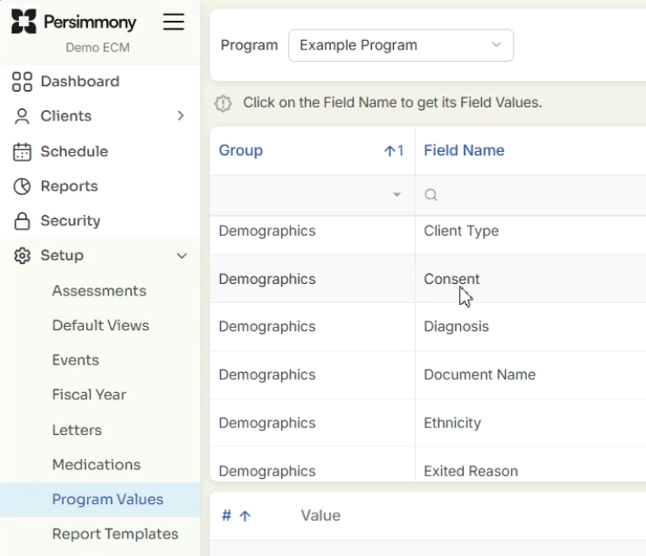
1. Navigate to Program Values
-
From the top menu, click on Setup.
-
Select Program Values from the dropdown.
-
At the top of the Program Values window, select your Program (e.g., "Example").
2. Locate the Relevant Group and Field
-
In the list of groups and field names, scroll to find the group labeled Demographics.
-
Under Demographics, select the Consent field name.
 3. Enable Alerts
-
In the lower pane, you will see a list of values that have been added for the Consent field.
-
Under the Alert column, check the box next to each value you want included in Case Manager Alerts.

Once selected, these values will trigger alerts in the Case Manager’s alert list when applicable.