![Screenshot 2025-02-20 104356.png]](https://employeekb.persimmony.com/hs-fs/hubfs/Screenshot%202025-02-20%20104356.png?height=40&name=Screenshot%202025-02-20%20104356.png)
Dashboard Alerts
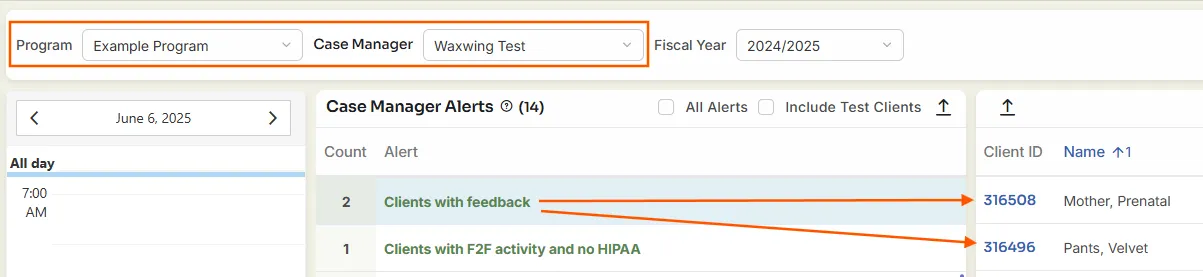
On the Dashboard, supervisors can filter by program and case manager to view alerts for a specific staff member.
-
If a supervisor has provided feedback on a client’s assessment or care plan, the client will appear under the Clients with Feedback alert.
-
Clicking this alert links directly to the relevant client.
Client List
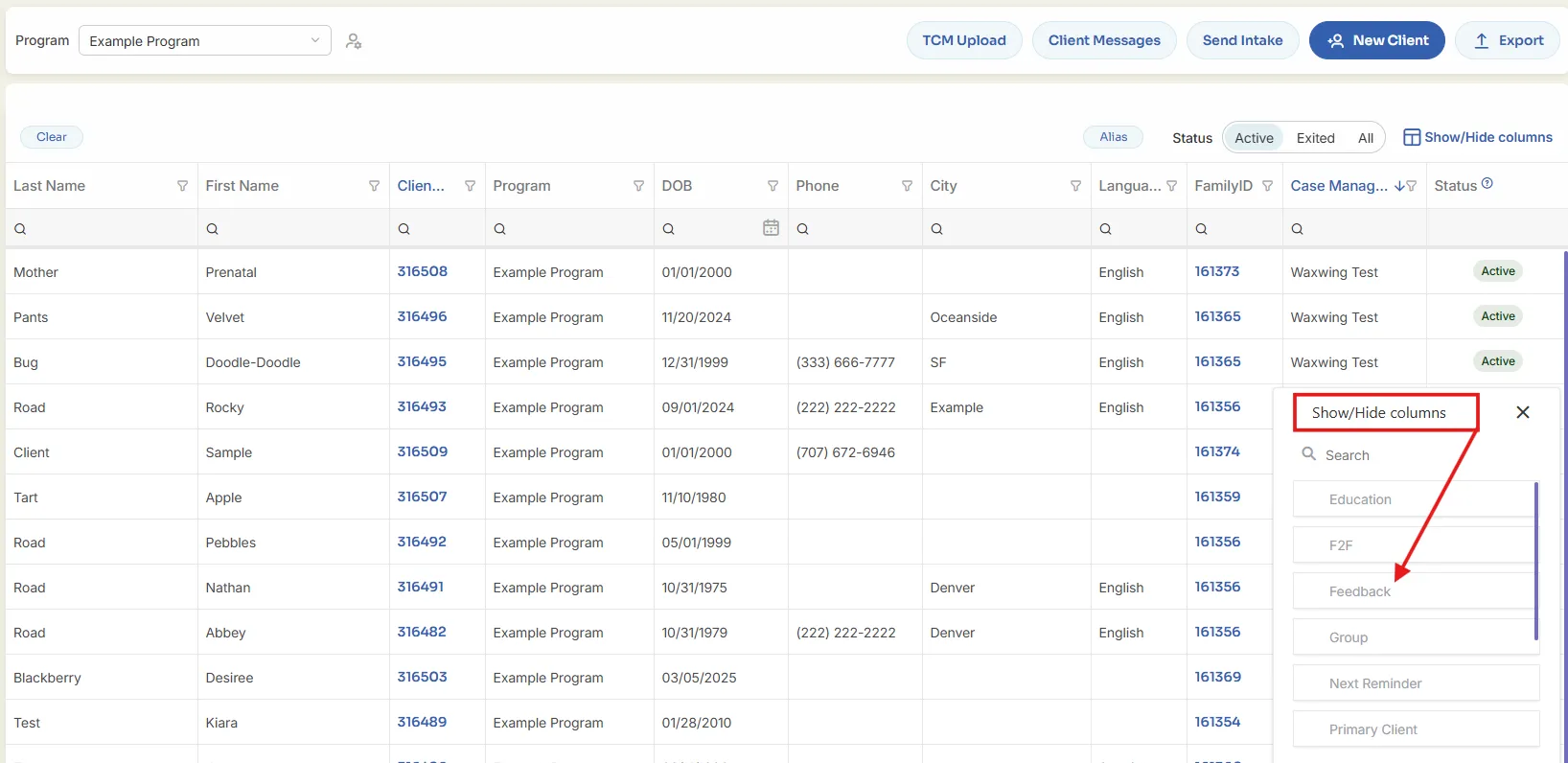
In the Client List, check the Feedback column to quickly see if any feedback exists.
-
Yes = Feedback has been added by a supervisor.
-
No = No supervisor feedback has been recorded.
If the Feedback column is not visible:
-
Click Show/Hide Columns
-
Check the box for Feedback
Client Profile
Feedback indicators also appear within the client’s profile.
Option 1: Use the Review Menu
-
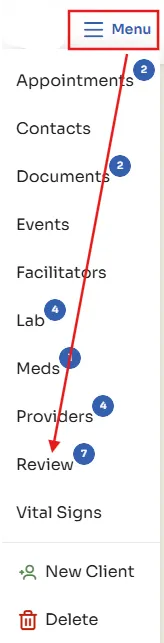
Click Menu > Review
-
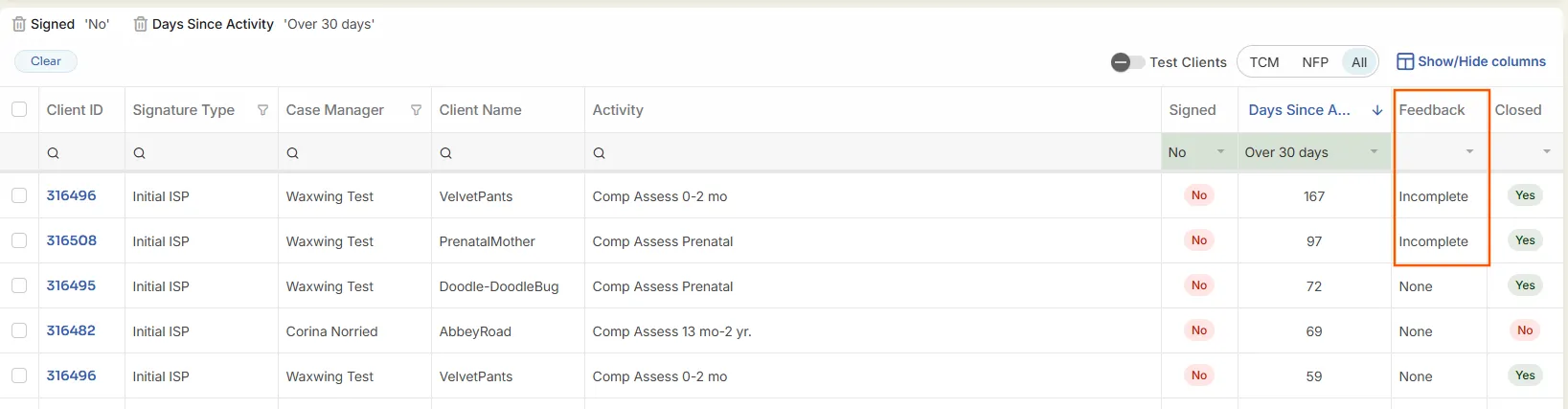
In the Feedback column:
-
Complete = Case manager has responded
-
Incomplete = Response pending
-
None = No feedback
-
-
The Date Signed column shows when the assessment was signed
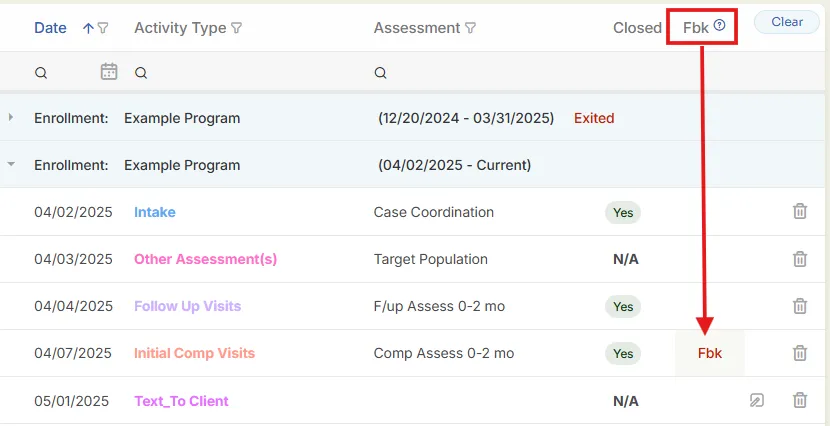
Option 2: Check the Chart Documents List
-
Look for “Fbk” in red next to assessment names
-
This indicates supervisor feedback has been entered
Signature
In the Signature section, the Feedback column shows the current status:
-
Incomplete = Feedback has not yet been addressed by the case manager
-
Complete = Case manager has marked the feedback as resolved