![Screenshot 2025-02-20 104356.png]](https://employeekb.persimmony.com/hs-fs/hubfs/Screenshot%202025-02-20%20104356.png?height=40&name=Screenshot%202025-02-20%20104356.png)
Creating a New Enrollment
Use this when enrolling a new client or re-enrolling a client who previously exited a program.
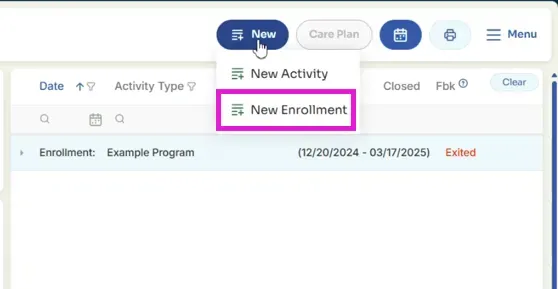
Steps
-
Open the Client Profile
-
Select New > New Enrollment
-
In the enrollment popup:
-
Choose the Program from the dropdown
-
Enter the Start Date (typically the date services began)
-
-
Select Save
Result:
The new enrollment appears in the Activity List and is ready for activities and assessments.
Re-Enrolling a Client with an Exited Enrollment
If a client was previously exited from a program:
-
Open the Client Profile
-
Review the exited enrollment (shown with an exit date)
-
Create a new enrollment using the steps above
Result:
The client profile will show both:
-
The historical exited enrollment
-
The new active enrollment
Exiting (Closing) an Enrollment
Use this when a client completes services, transfers programs, or discontinues participation.
Exiting an enrollment closes program participation while preserving all historical data.
Steps
-
In the Activity List, select the enrollment to exit
-
Select Exit Enrollment
-
In the popup:
-
Choose a Reason for Closing
-
Select OK
-
Result:
The enrollment displays both a Start Date and an Exit Date, and the client’s status updates to Exited.
If You See an “Errors in Enrollment” Message
The system prevents exiting an enrollment if required items are incomplete. The error message identifies:
-
Item – What needs attention (for example, an assessment)
-
Activity Date – When it was created
-
Issue – What is missing or incomplete
-
Care Plan Need ID – Reference number, if applicable
Common Errors and How to Resolve Them
| Error Message | What It Means | How to Fix |
|---|---|---|
| No Closure Summary | A Closure Summary assessment is required | Add, complete, and close the Closure Summary |
| Not Closed Form | An assessment is still open | Complete all required fields and close the assessment |
| Resource Missing | A Care Plan need has no resource | Open the Care Plan, locate the Need ID, and assign a Resource |
| Problem Outcome Missing | No outcome recorded for a Care Plan need | Open the Care Plan, locate the Need ID, and assign an Outcome |
| Follow Up Missing | No follow-up recorded for a Care Plan need | Open the Care Plan, locate the Need ID, and add a Follow-Up |
After resolving all listed issues, attempt to exit the enrollment again.
Re-Opening an Exited Enrollment
Use this when an enrollment was exited in error or needs to be reactivated.
Steps
-
In the Activity List, select the exited enrollment
-
Select Un-Exit Enrollment
-
Confirm the action
-
Select Continue
Result:
The enrollment becomes active again, showing a Start Date with no Exit Date. The enrollment history reflects the change.
Changing an Enrollment’s Program
Use this when an enrollment was created under the wrong program.
Prerequisite
-
The enrollment must be empty
-
No assessments
-
No progress notes
-
No activities
-
Steps
-
Select the empty enrollment in the Activity List
-
Select Edit
-
In the Edit Enrollment popup:
-
Choose the correct Program
-
Select OK
-
Result:
The enrollment updates to reflect the new program.
Deleting an Enrollment
Use this only when an enrollment should be fully removed from the system.
Prerequisite
-
The enrollment must be empty
-
No assessments
-
No progress notes
-
No activities
-
Steps
-
Open the Client Profile
-
In the Activity List, select the enrollment
-
Select Delete Enrollment
-
Confirm the deletion (confirmation may appear more than once)
Result:
The enrollment is permanently removed from the client profile and cannot be recovered.
Summary
Managing enrollments ensures accurate program participation and clean reporting. Always confirm enrollment status before adding activities, and remember that most enrollment actions depend on user permissions. If an option is unavailable, your supervisor or program administrator can help.