![Screenshot 2025-02-20 104356.png]](https://employeekb.persimmony.com/hs-fs/hubfs/Screenshot%202025-02-20%20104356.png?height=40&name=Screenshot%202025-02-20%20104356.png)
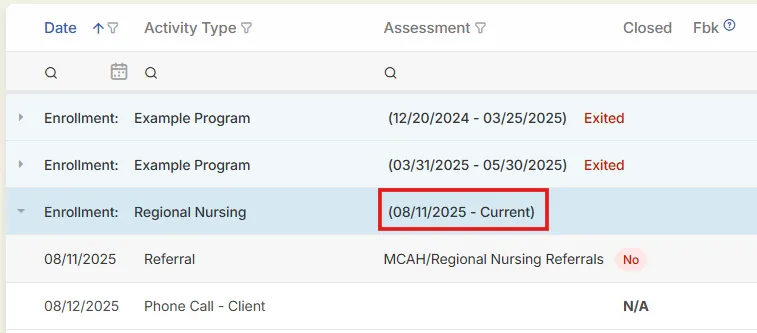
Ghost Enrollments are automatically created when assessments or memos are added to a client’s chart without a matching program enrollment. This typically happens when:
-
The client has no active enrollment,
-
The enrollment dates do not cover the document date(s), or
-
The document’s program does not match the enrollment.
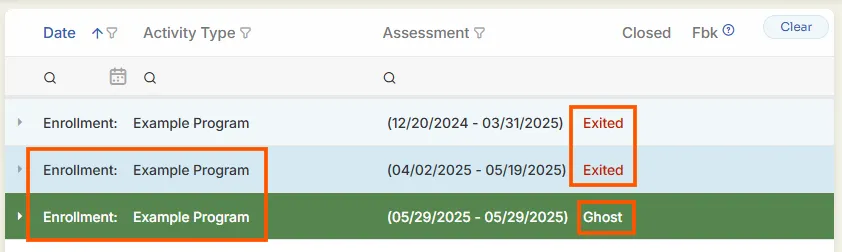
Ghost Enrollments allow users to continue documentation without interruption, but the documents must later be reassigned to a valid program enrollment for accurate reporting and tracking.
This article explains how to resolve Ghost Enrollments by either:
-
Adjusting an existing enrollment to absorb the documents, or
-
Creating a new enrollment that matches the Ghost Enrollment’s program and date range.
Note: You must have Edit Enrollments permission under Security > User Group to make changes to enrollment dates.
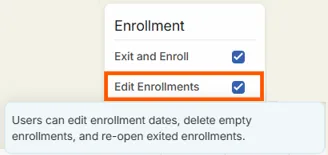
Steps to Integrate Ghost Enrollments into Existing Program Enrollments
Use this method when the Ghost Enrollment and an existing enrollment share the same Program.
-
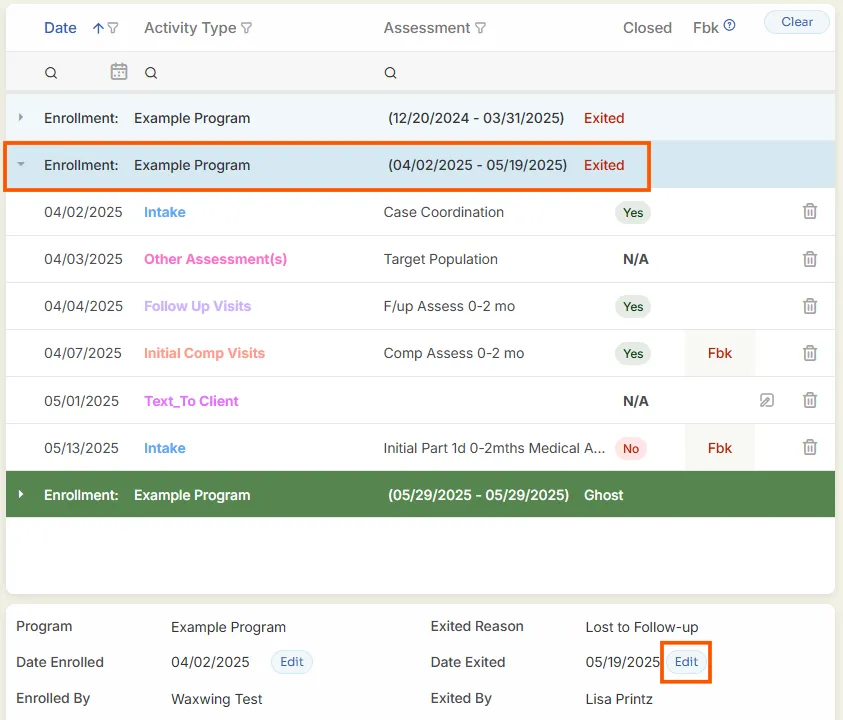
Open the Client Profile and go to the Enrollments section.
-
Select the enrollment you want to assign the Ghost Enrollment documents to.
-
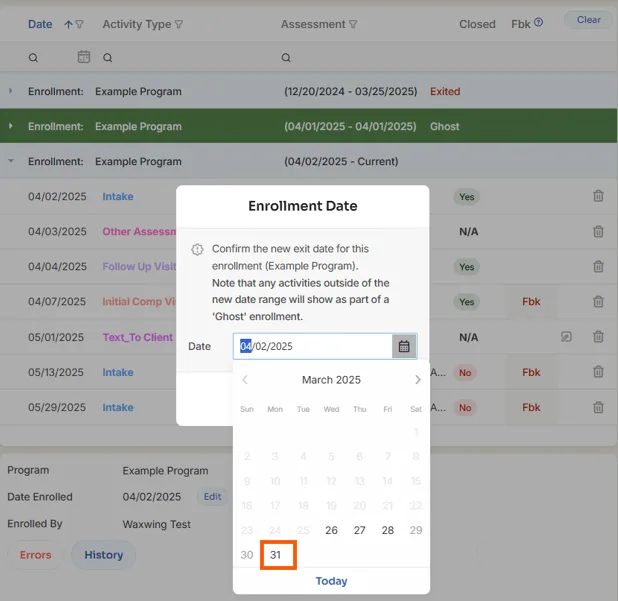
In the Details Pane, click Edit next to Date Exited.
-
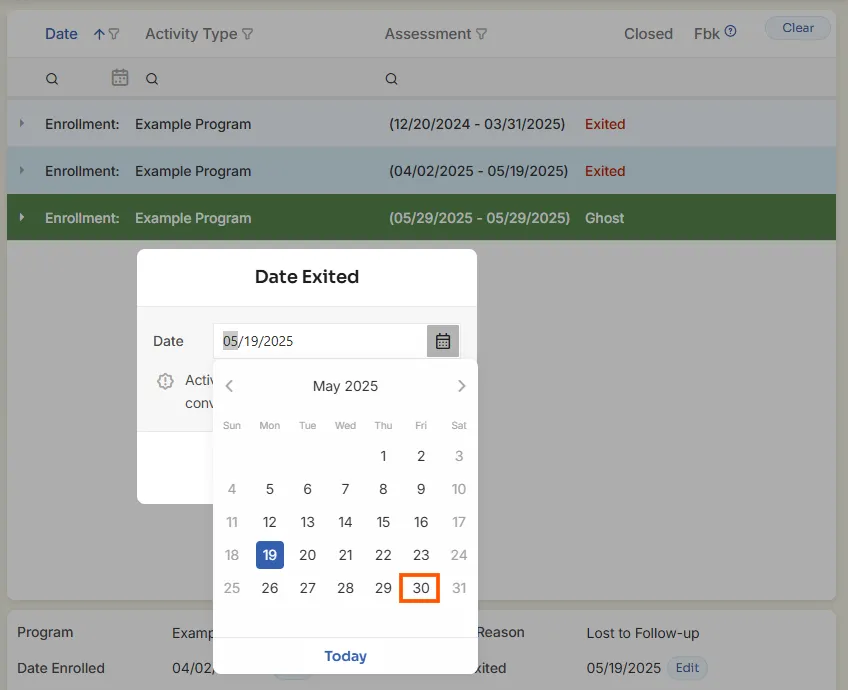
Review the Ghost Enrollment dates. Choose a new Exit Date that is after the latest document date.
-
Click Save.
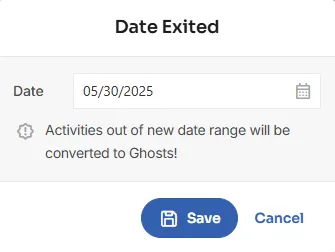
-
The documents will be merged into the selected enrollment, and the Ghost Enrollment will be removed.
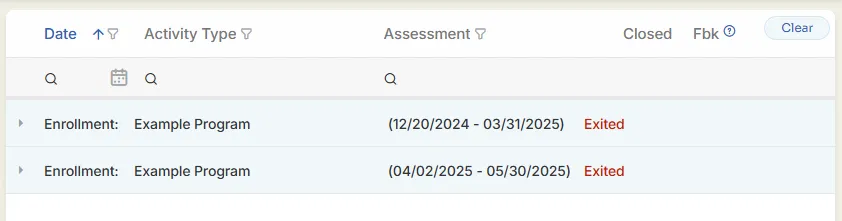
-
If needed, repeat the process by editing the Date Enrolled instead:
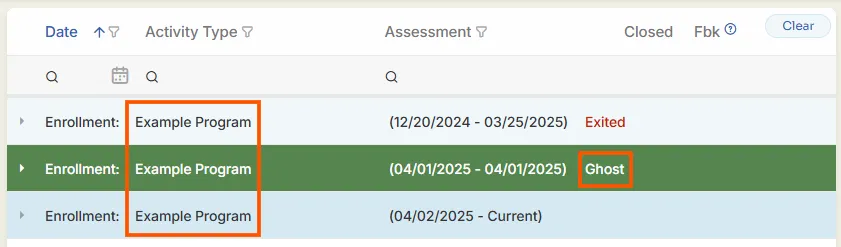
-
Click Edit next to Date Enrolled.
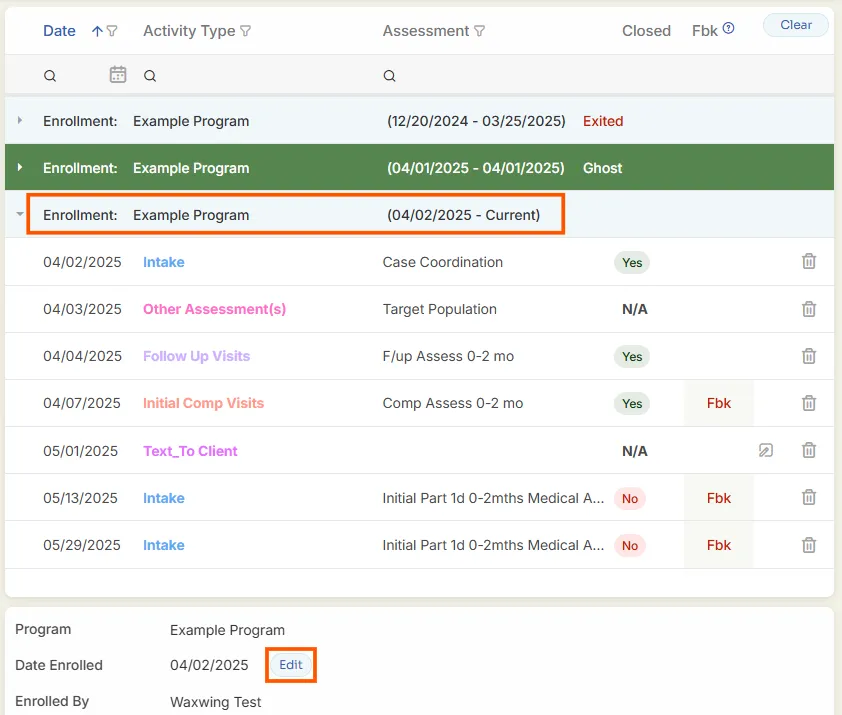
-
Change the date to precede the Ghost Enrollment’s document date(s).
-
Click Save.
-
Documents are reassigned, and the Ghost Enrollment disappears.
Steps to Integrate Ghost Enrollments into a New Program Enrollment
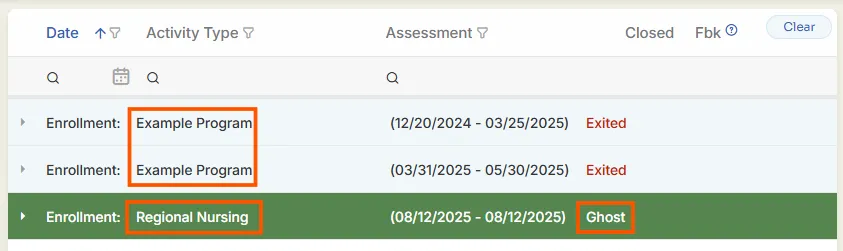
Use this method when the Ghost Enrollment program does not match any existing enrollment.
-
Open the Client Profile and go to the Enrollments section.
-
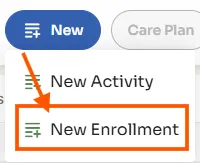
Click New and select New Enrollment.
-
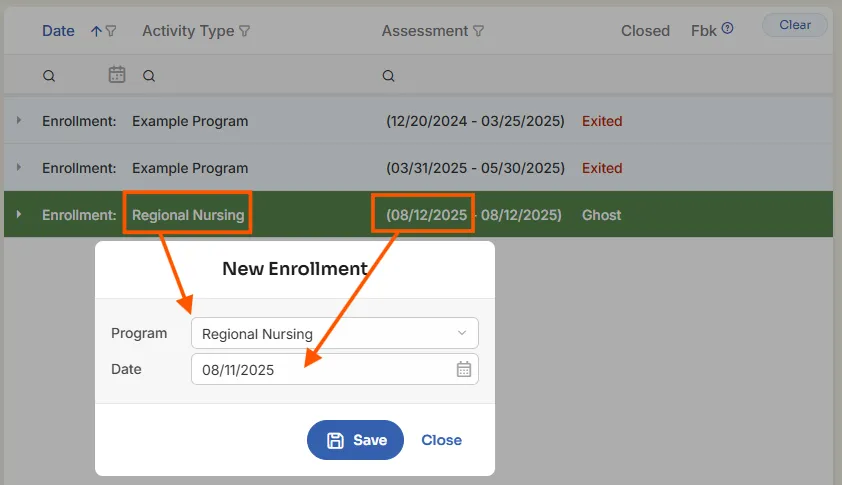
In the pop-up, choose the same Program as the Ghost Enrollment.
-
Set the Date Enrolled to a date before the earliest Ghost Enrollment document.
-
Click Save.
-
The Ghost Enrollment documents are now assigned to the new enrollment.
Note: If the selected program is configured to auto-create assessments, those will be added automatically when the new enrollment is saved.