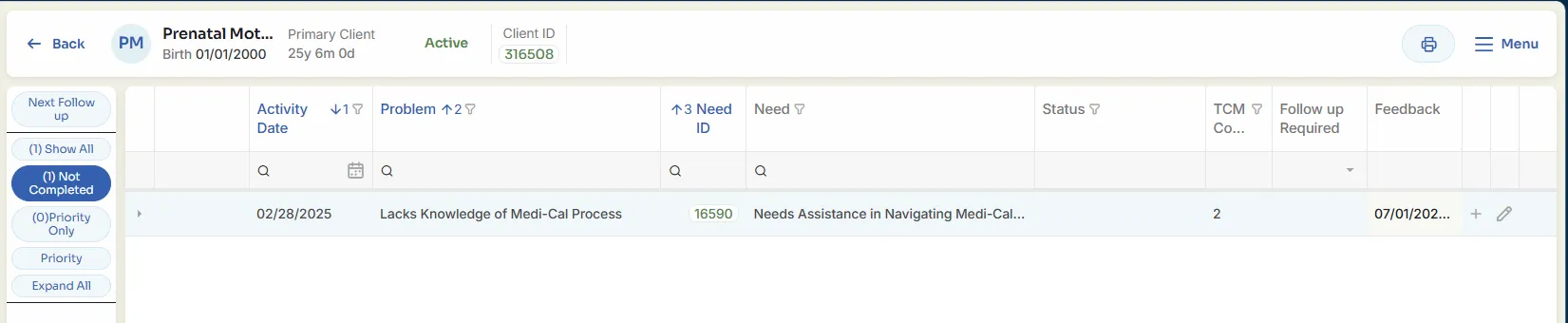
![Screenshot 2025-02-20 104356.png]](https://employeekb.persimmony.com/hs-fs/hubfs/Screenshot%202025-02-20%20104356.png?height=40&name=Screenshot%202025-02-20%20104356.png)
Complete Assessment Feedback
-
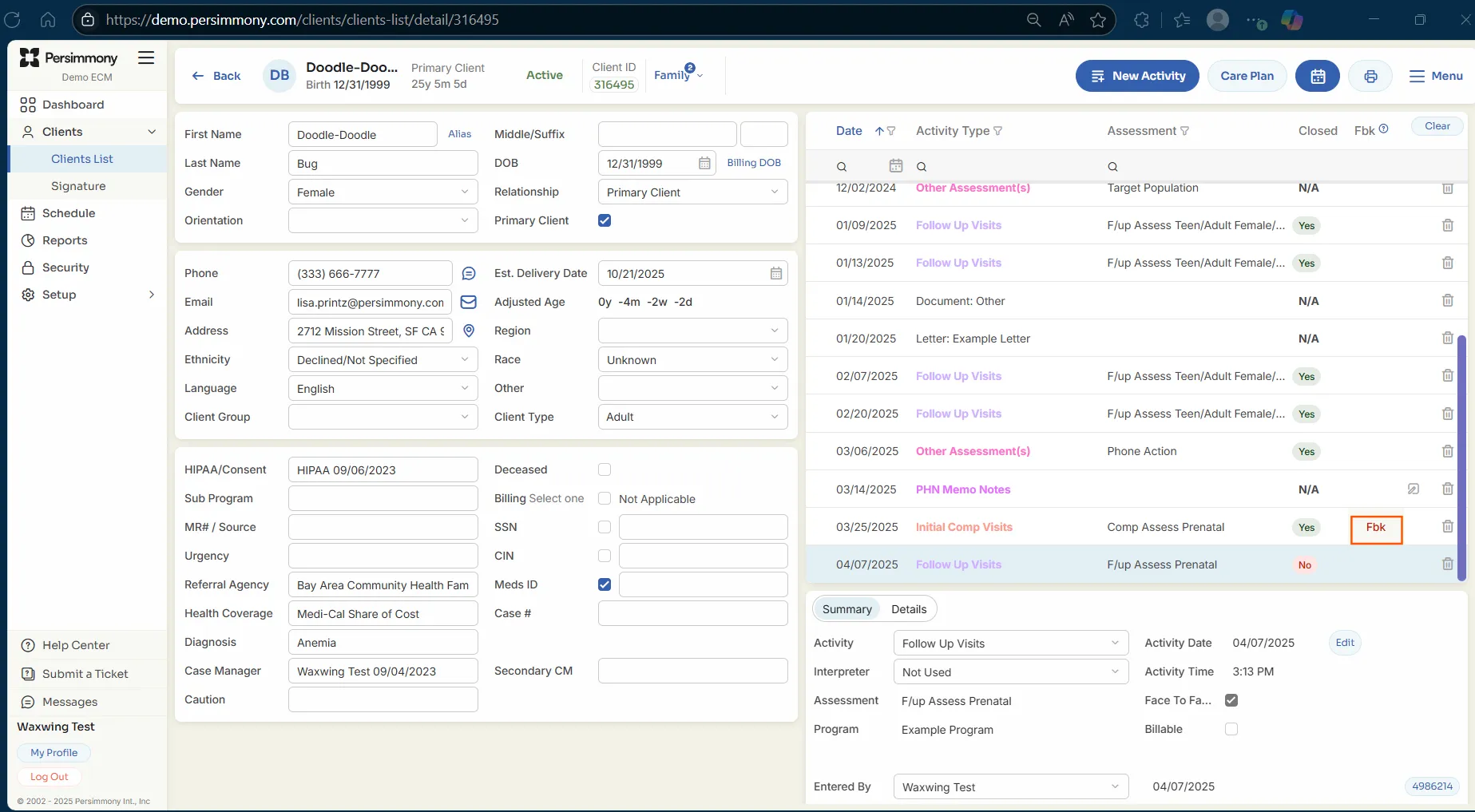
In the Client Profile, locate the FBK column. Click the assessment marked Fbk.
-
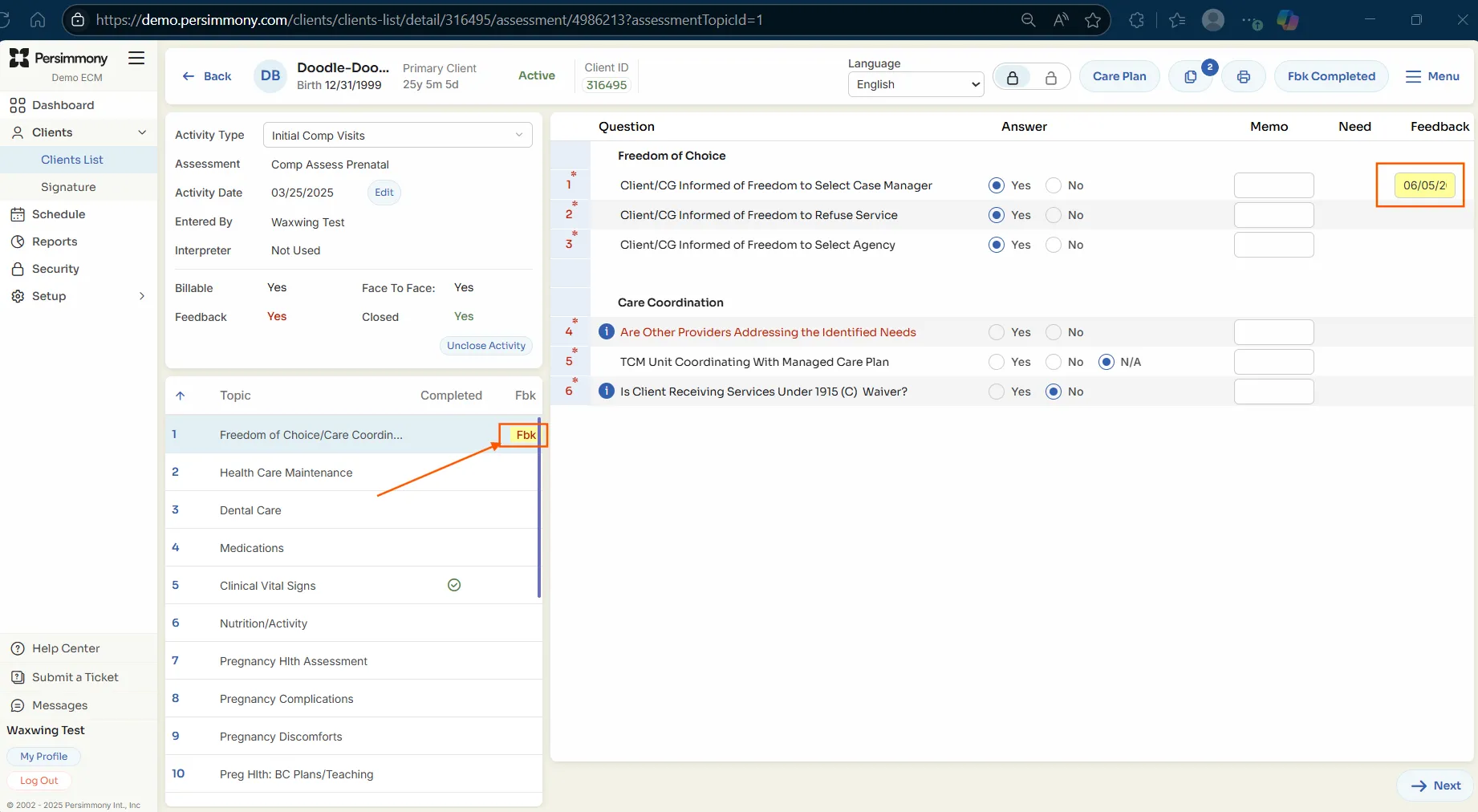
Inside the assessment, topics with feedback also display Fbk.
-
Click the topic, then select the yellow Feedback Memo icon.
-
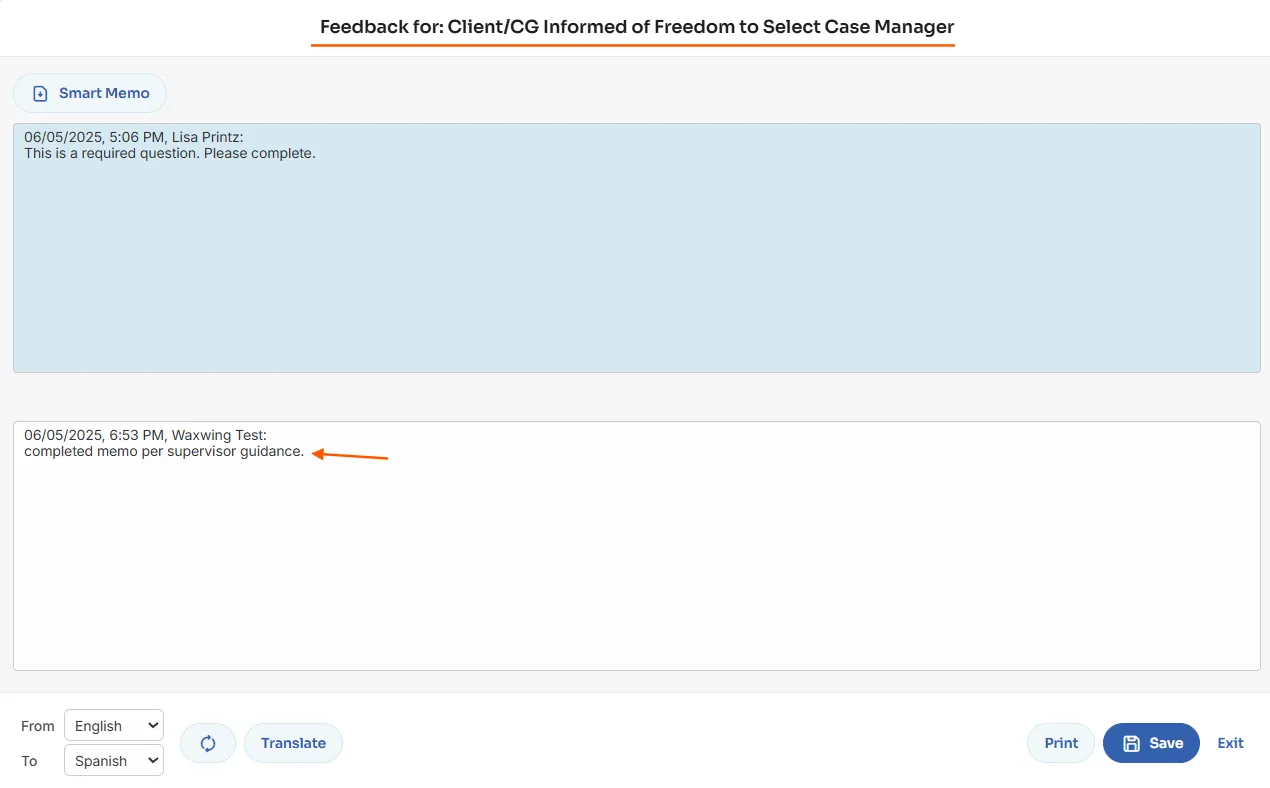
Read the supervisor’s comments in the memo and make any required changes.
-
After making the changes, click Leave Feedback on the assessment screen.
-
The topic will update to Cmp (Completed).

Complete Care Plan Feedback
-
From the Client Profile, click the Care Plan button (if it includes an exclamation mark).
-
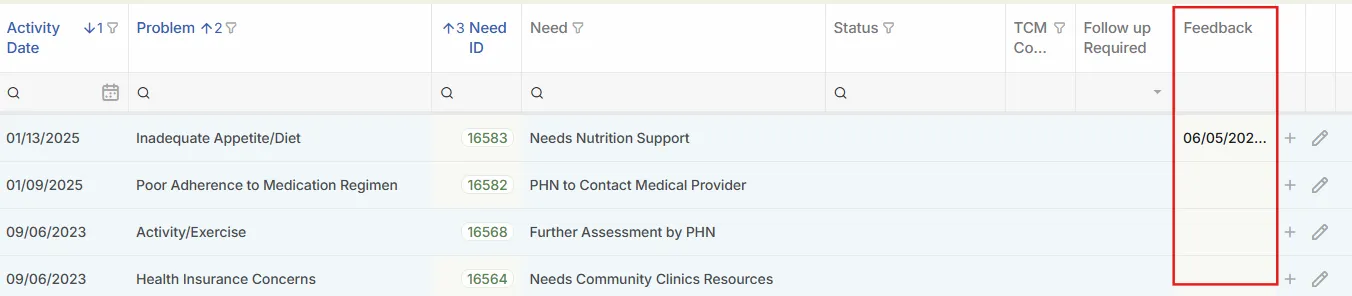
In the Care Plan tab, check the Feedback column for memo icons.
-
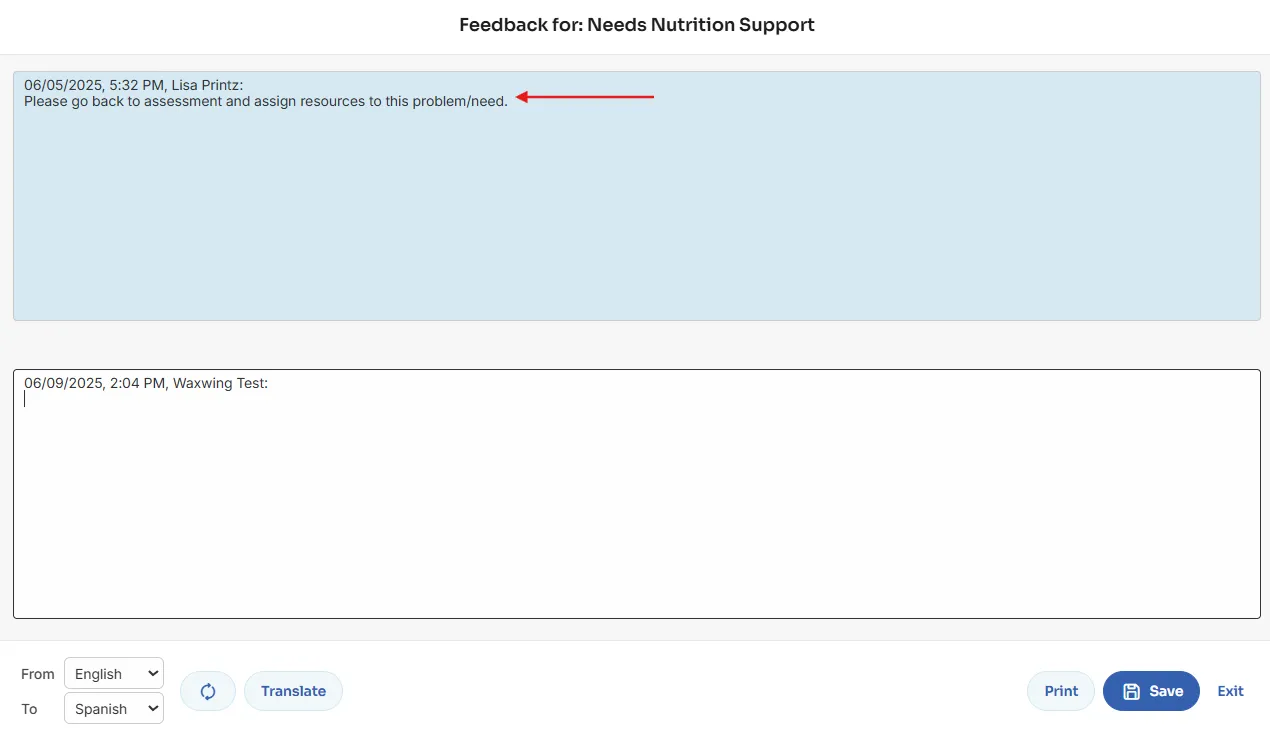
Click the gray memo icon to open the supervisor's feedback.
The top (blue) section contains the supervisor’s comments.
-
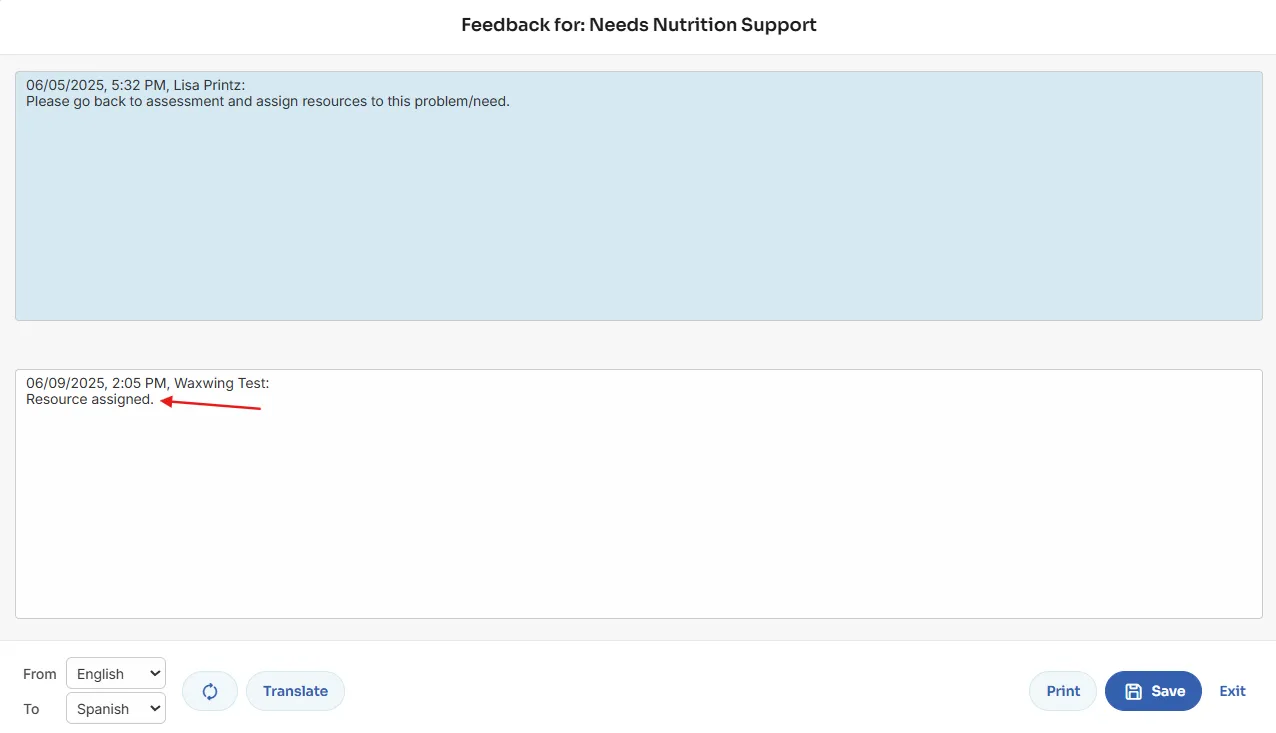
After making the requested changes, reopen the memo, type your response in the bottom (white) section, and click Save.
-
Once all feedback is addressed, click Feedback Completed, then confirm by selecting Yes.

After Feedback Is Completed
-
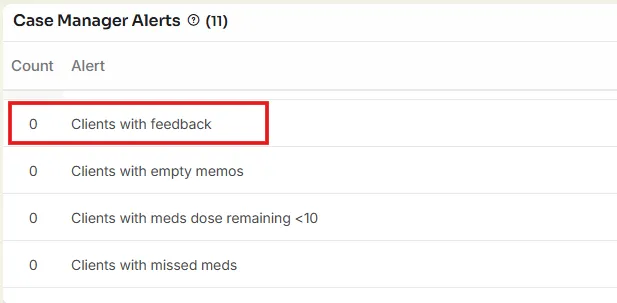
Dashboard: Client is removed from the Clients with Feedback alert.
-
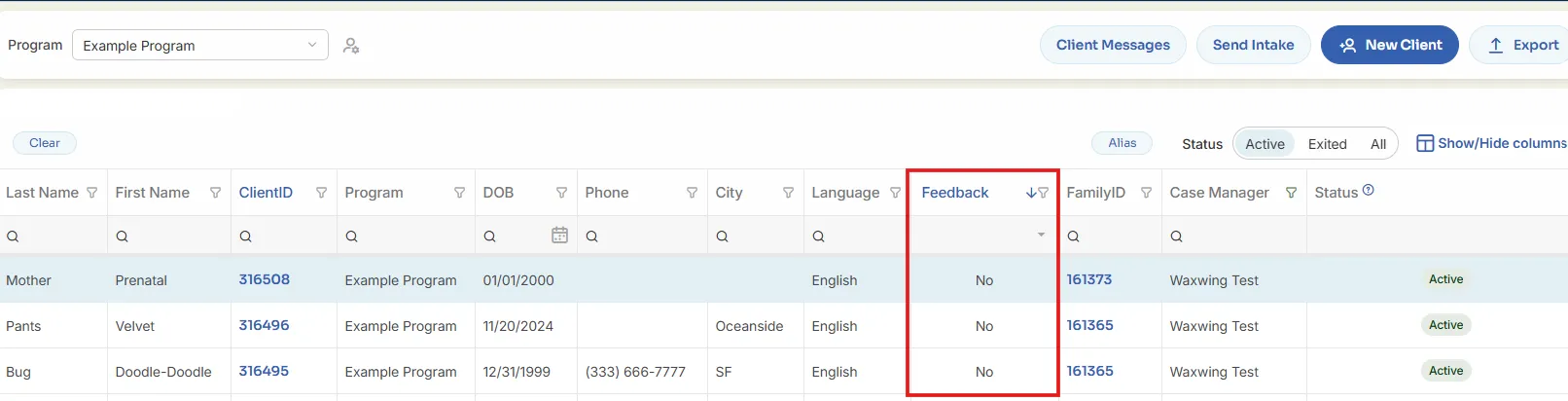
Client List: The Feedback column changes from “Yes” to “No”.
-
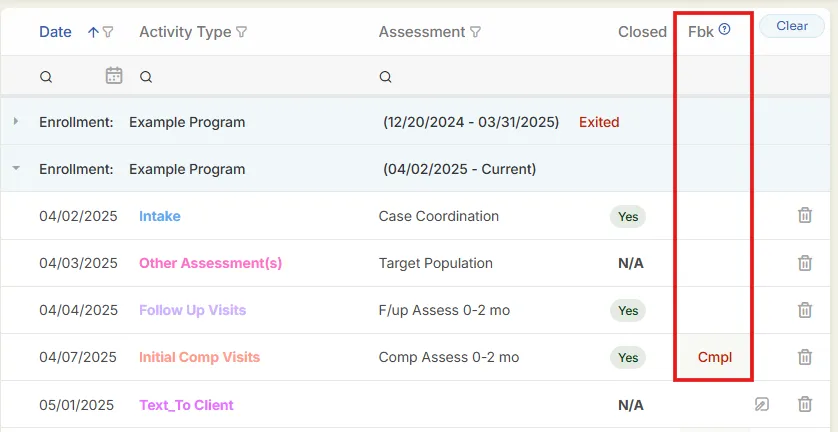
Client Profile: The Review pop-up shows Complete, and the Fbk column updates to Cmpl.
-
Care Plan: The Leave Feedback button is removed, but feedback memos remain available to read.