![Screenshot 2025-02-20 104356.png]](https://employeekb.persimmony.com/hs-fs/hubfs/Screenshot%202025-02-20%20104356.png?height=40&name=Screenshot%202025-02-20%20104356.png)
1. Opening the Signature Page
-
Select Clients
-
Click Signature.
-
The Signature page will open.
2. Default Filters
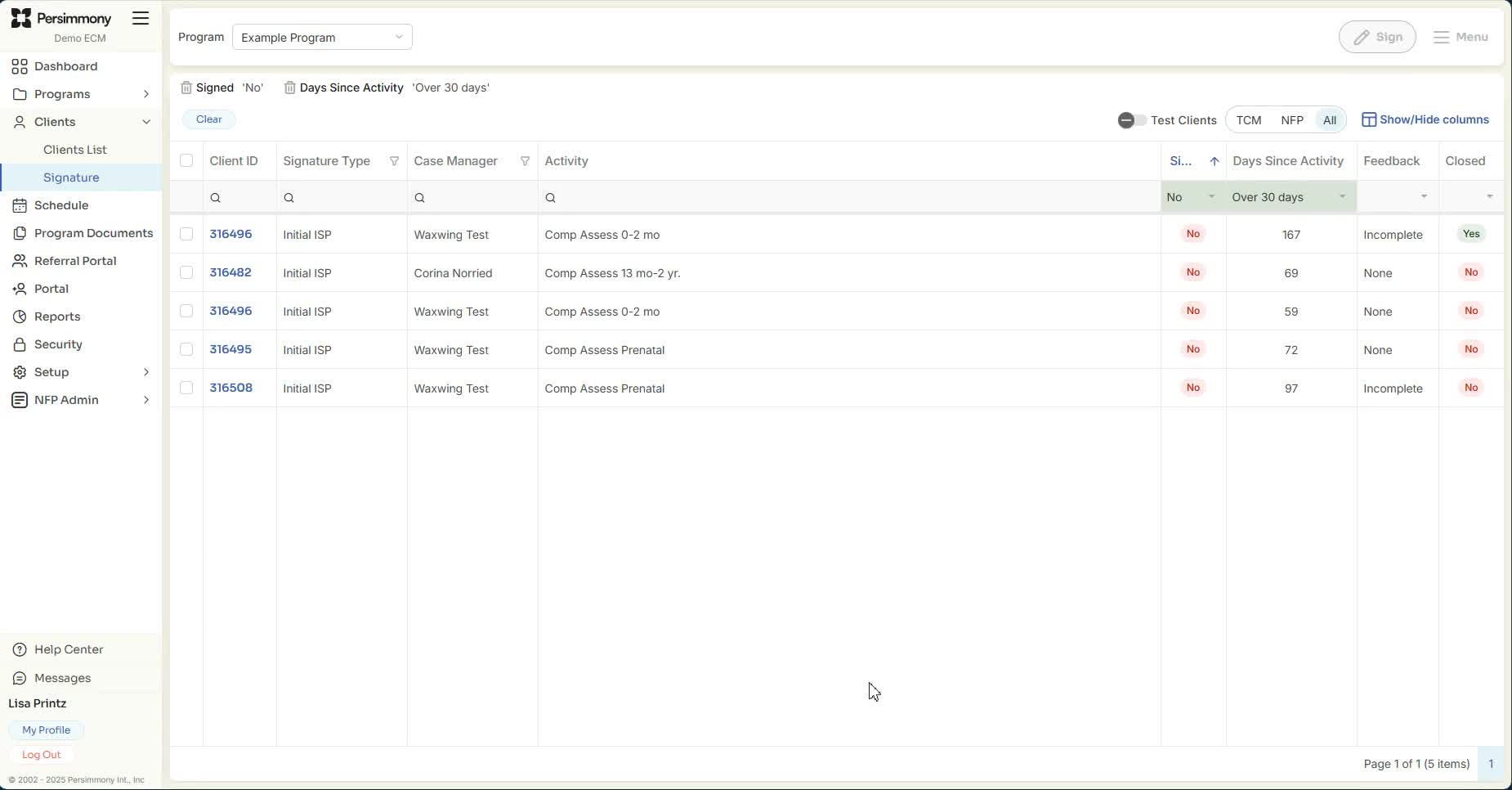
By default, two filters are applied:
-
Sign Filter: Set to “Not Signed”
-
Days Since: Set to “Over 30”
These filters help you focus on assessments that have remained unsigned for over 30 days.
To see all assessments regardless of filter:
-
Click the Clear button to remove the default filters.
3. Using Filters and Toggles
-
Program Filter: Located in the top-left. Select All Programs, a single program, or multiple programs as needed.
-
Test Clients Toggle: Click to include or exclude test clients from the view.
-
TCM/NFP Filters: Use these to narrow your view to only TCM or only NFP assessments.
4. Viewing Assessments
Once filters are set, the page will list all assessments requiring your signature for clients in the selected program(s).
5. Menu Options
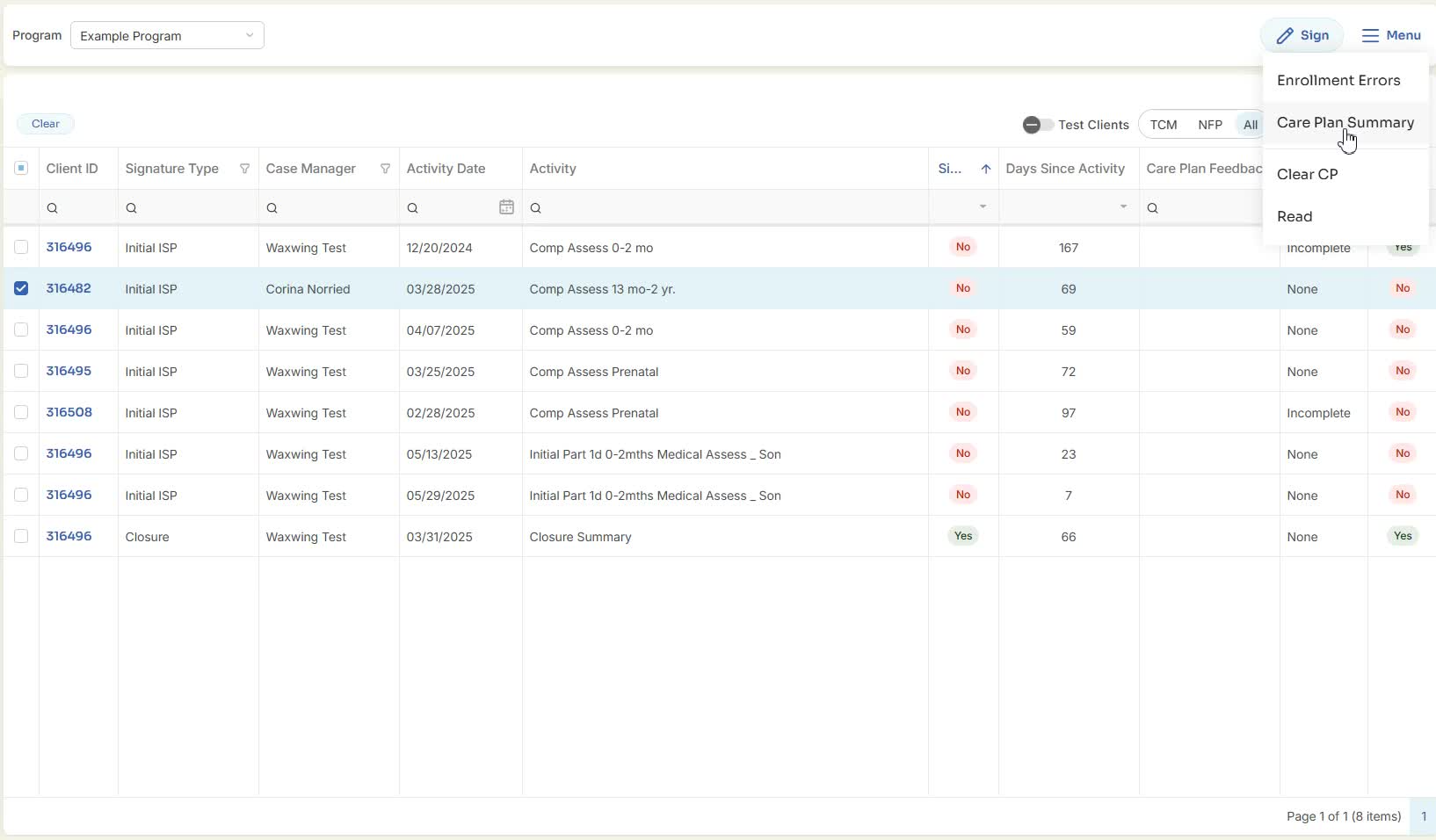
After selecting an assessment, the Menu button will become available. Click it to see the following options:
-
Enrollment Errors: Opens a report showing enrollment issues.
-
Care Plan Summary: View the client's Care Plan Summary without navigating to their record.
-
Clear CP: Clears feedback from the Care Plan Read section.