![Screenshot 2025-02-20 104356.png]](https://employeekb.persimmony.com/hs-fs/hubfs/Screenshot%202025-02-20%20104356.png?height=40&name=Screenshot%202025-02-20%20104356.png)
Accessing the Signature Tool
-
From the left menu, go to Clients > Signature.
-
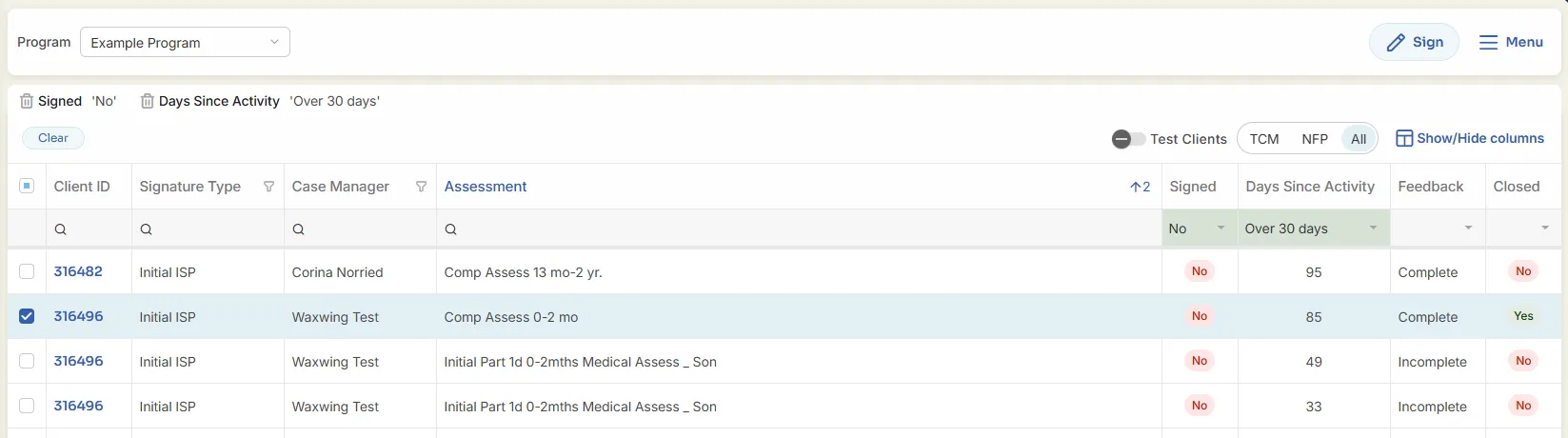
The Signature view opens, filtered to show “Over 30 Days” and “Unsigned” assessments by default.
Signature View Components
-
Program Selector – Choose the program(s) to review.
-
Sign Button – Marks selected assessment(s) as signed by Supervisor.
-
Menu – Access additional tools:
-
Enrollment Errors – Runs the Enrollment Error Report for selected client/assessment's enrollment.
-
Care Plan Summary – Provides the Care Plan Summary printout without opening the client’s Care Plan.
-
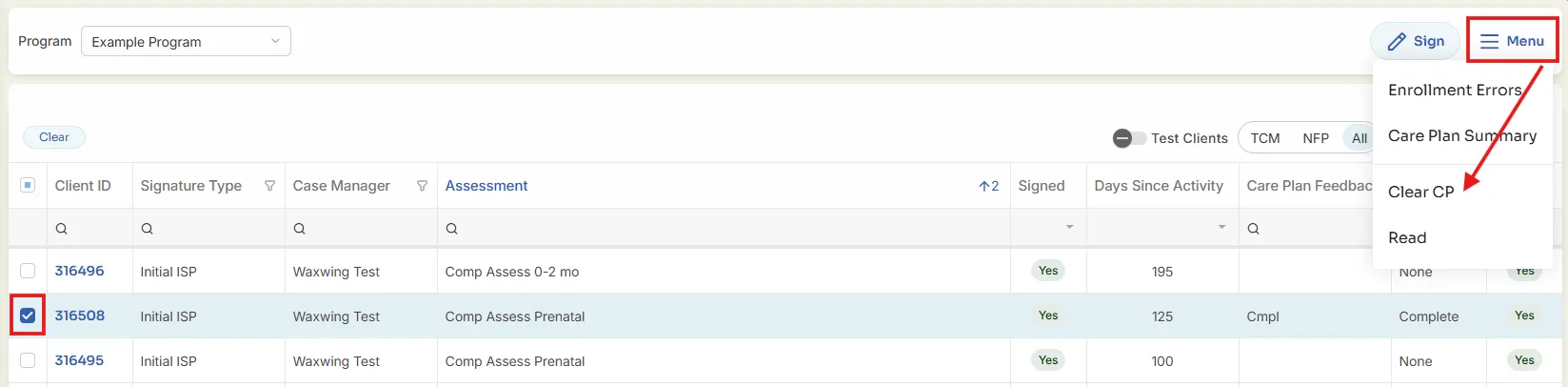
Clear CP – Deletes feedback on Care Plan.
-
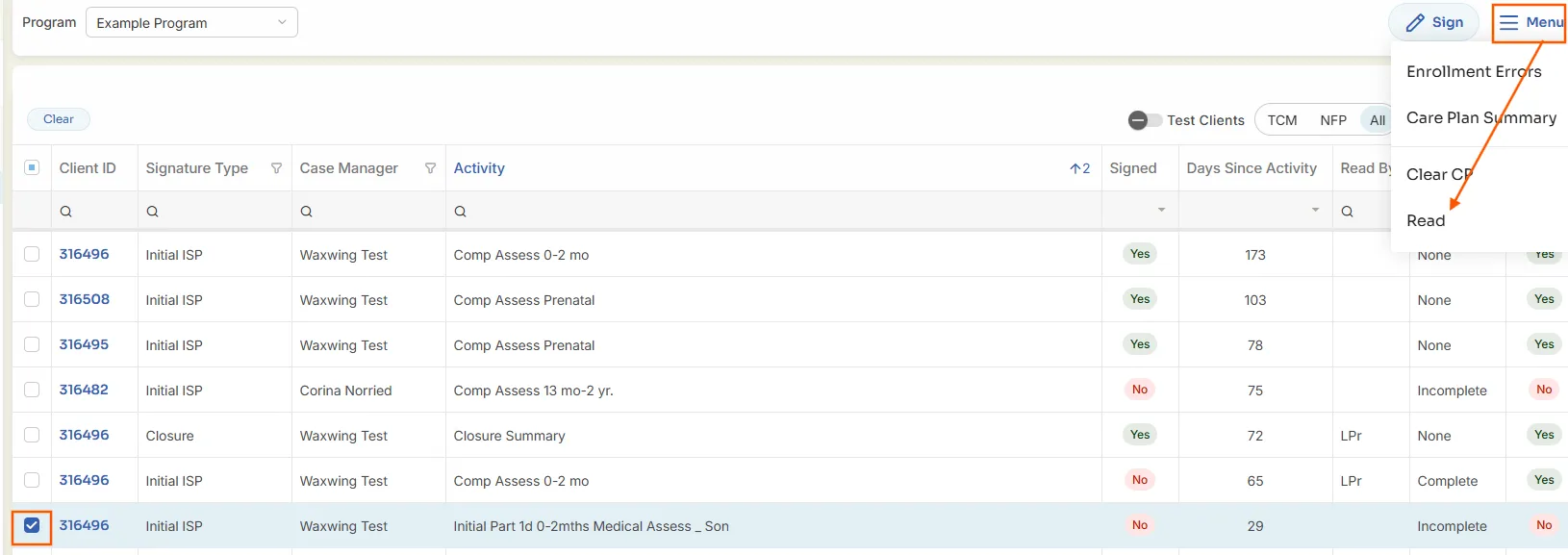
Read – Marks assessment as read.
-
-
Filters Row – Displays all applied filters.
-
Clear Filters Button – Removes all filters.
-
Test Clients Toggle – Toggle to include or exclude test clients.
-
TCM-NFP-All Filter – Default is to show all assessments. Allows the user to filter out NFP Assessments (which usually are not signed) by selecting the TCM button.
-
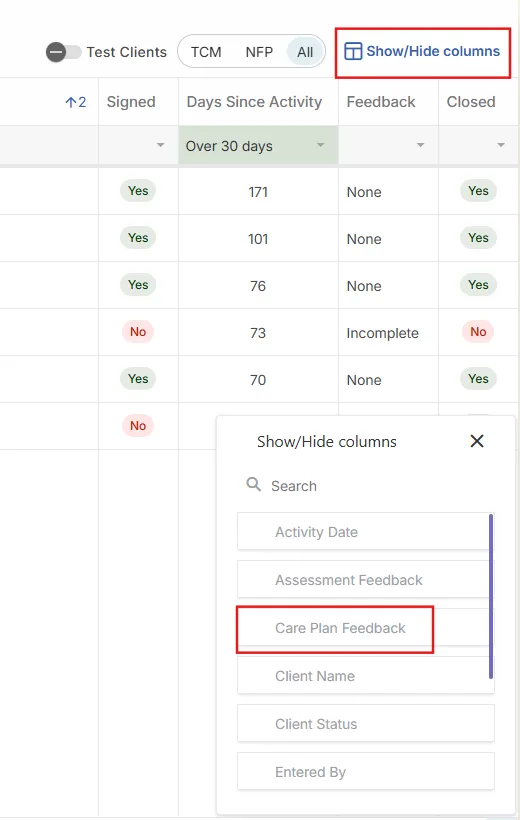
Show/Hide Columns – Add or remove columns in the view.
-
Select Button – Indicates the selected assessment. Can select multiple assessment to bulk sign.
Assessment List Columns
Columns may vary depending on Show/Hide settings. All columns are sortable and filterable.
-
Client ID
-
Signature Type – Based on the program’s assigned Signature Types in Setup. This list may include the TCM signature requirements (Initial ISP, Closure, and Periodic Review), as well as other signature types that the county may require for non-TCM purposes.
-
Case Manager
-
Activity
-
Signed – Yes/No
-
Days Since Activity – Filters: Under 15, 15–30, Over 30, All
-
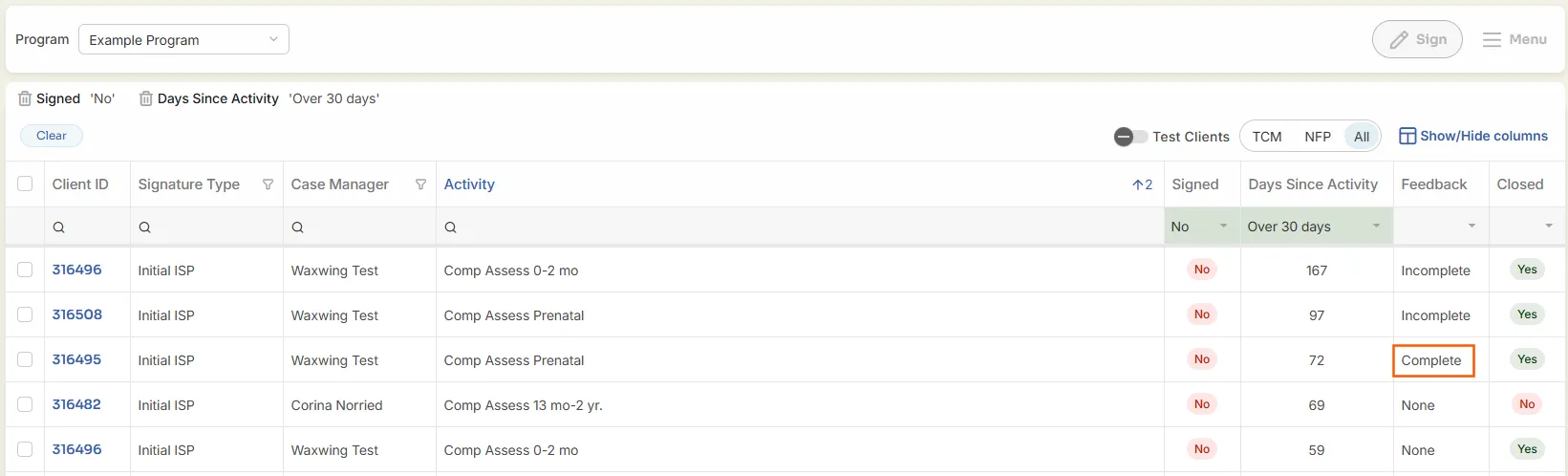
Feedback – All, None, Incomplete, Complete
-
Incomplete = Supervisor has left feedback.
-
Complete = Case manager has responded.
-
-
Closed – Indicates if assessment is closed.
The list of assessments displayed on the Signature screen depends on the data columns used and the filters applied.
Providing Supervisor Feedback
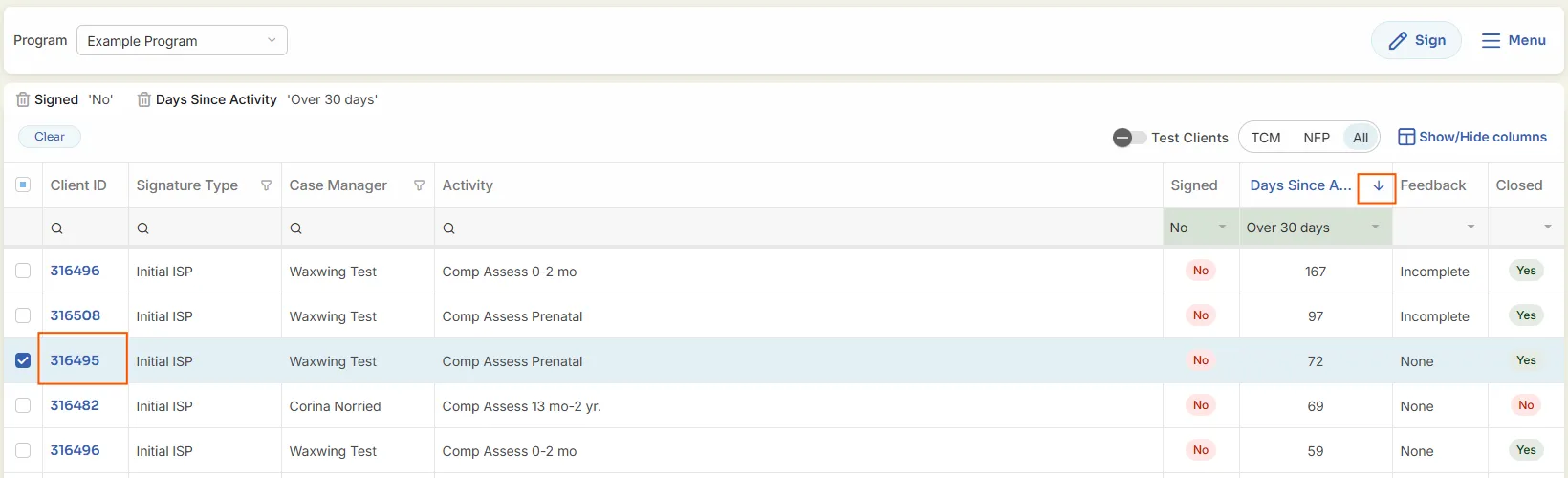
The default view when first opening the Signature screen is to see the assessments that are “Over 30 Days” and “Unsigned”. The other filter options are “15-30 days” and “Under 15”. To sort data by oldest assessment, use the Days Since Activity filter.
Open an Assessment
-
Double-click the Client ID to open the assessment in a new tab.
-
Only designated topics/questions will be shown for feedback.
The Assessment opens to display the Topics/Questions to be read. Some assessments will not display all assessment questions or topics, depending on how the specific assessment was setup for Signature screen review.
In the Assessment, yellow Feedback memos are displayed under the Feedback label on the right side of the screen.
Add Assessment Feedback
-
Click the yellow Feedback Memo next to the question or use the Smart Memo button.
-
After entering feedback, click Leave Feedback.
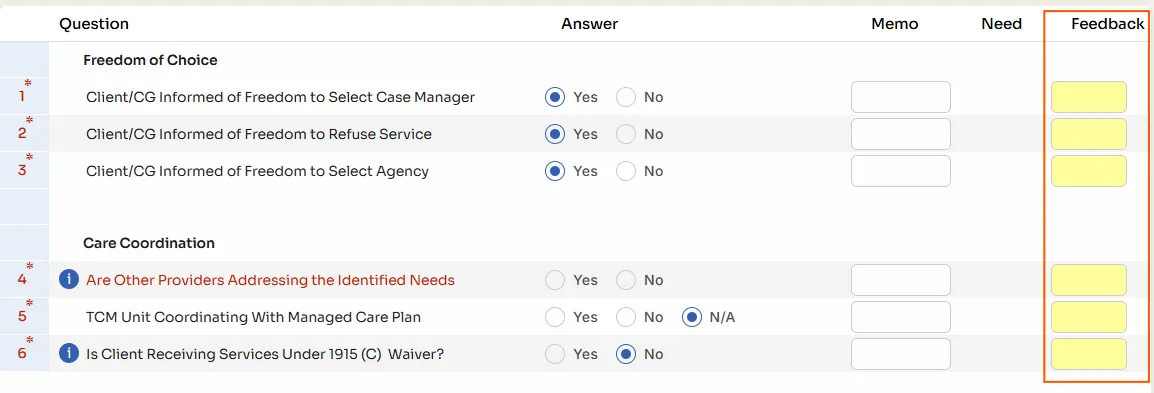
- The feedback is displayed in the yellow feedback memo on the client’s assessment.

Important: If you do not click Leave Feedback, the case manager will not receive a notification.

Add Care Plan Feedback
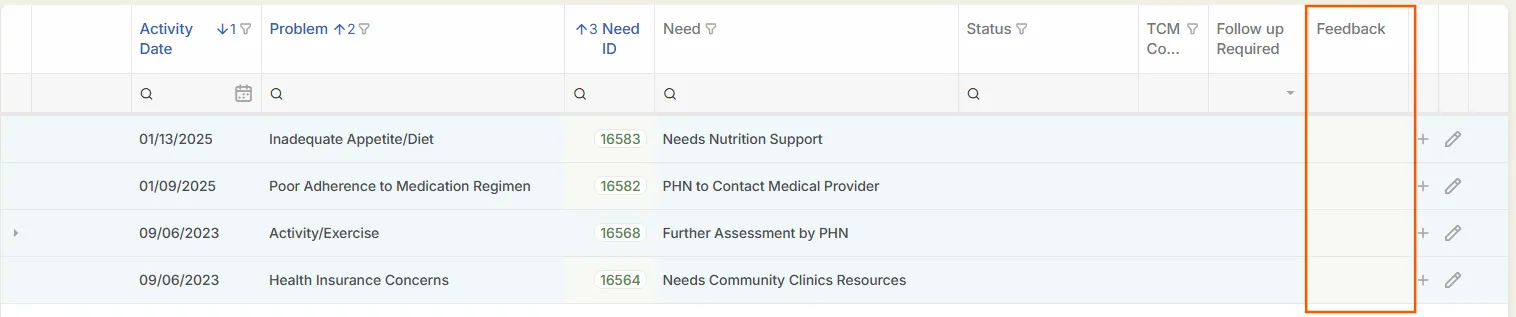
Yellow Feedback memos are also available for each Problem on the Care Plan. To access the client’s Care Plan, click the Care Plan button and it will open in a new tab allowing supervisors to tab between the assessment and Care Plan while providing feedback.
-
Open the Care Plan using the Care Plan button (opens in a new tab).
-
In the Feedback column, click the gray memo icon.
-
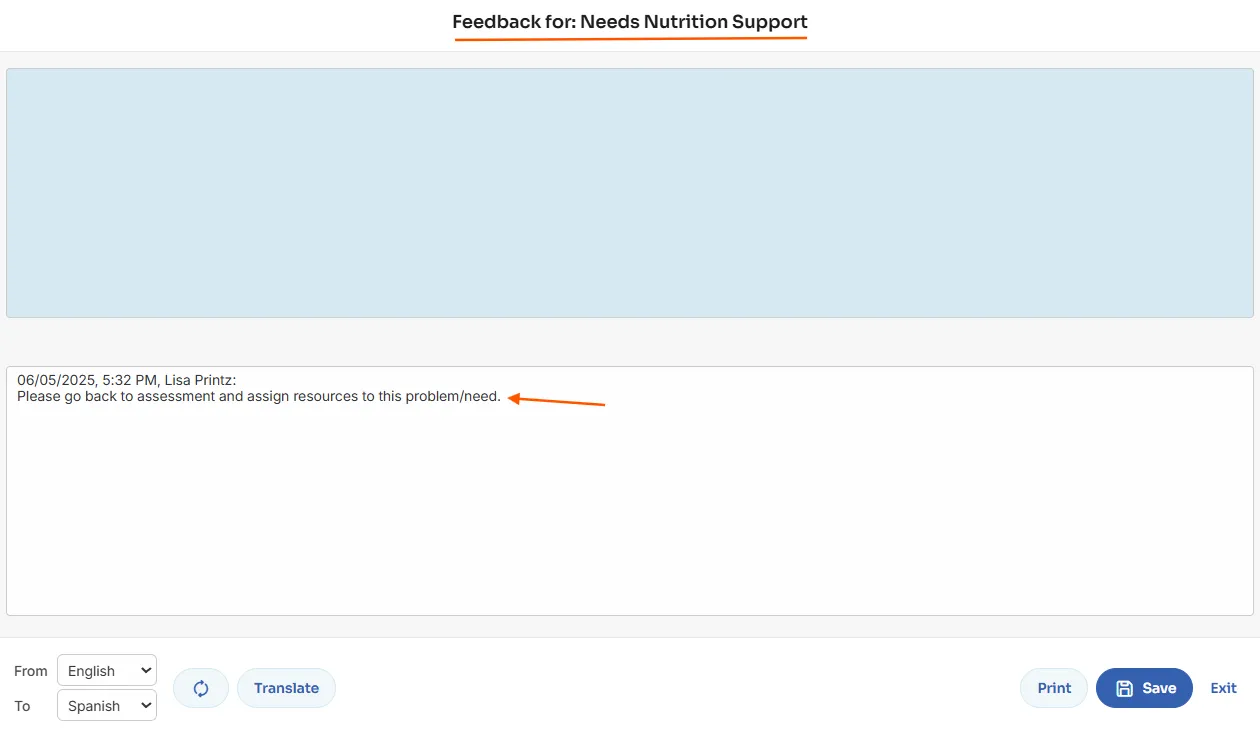
Type your feedback and click Save.
-
Click Leave Feedback before exiting.
-
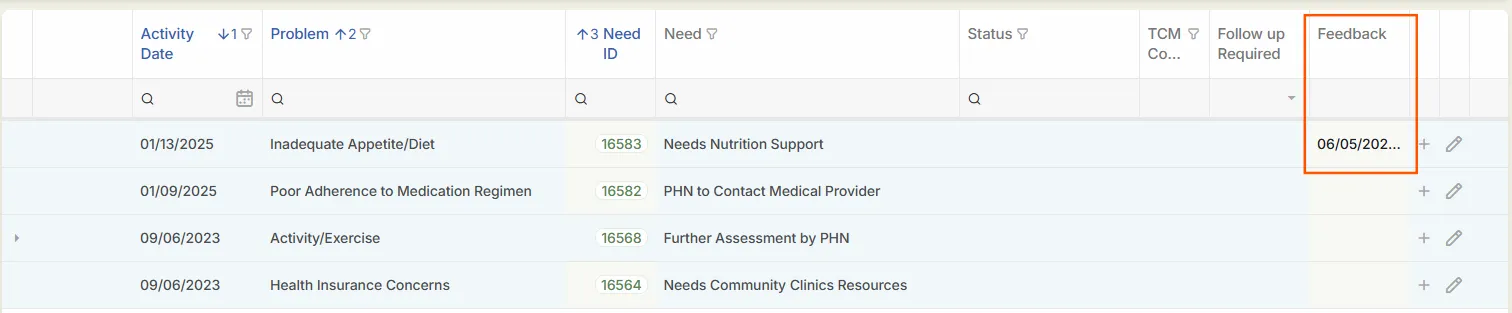
The Care Plan feedback memo is displayed on the Care Plan screen, in the Feedback column.
Signing an Assessment
Note: Feedback is not stored permanently. Once an assessment is signed or Care Plan feedback is cleared, it cannot be recovered.
-
Confirm the feedback displays as Complete in the Signature Screen.
-
Select the assessment(s).
-
Click Sign.
-
Click Yes in the confirmation popup.
-
To see signed assessments, filter the Signed column to Yes.
Clearing Care Plan Feedback
Since Assessment and Care Plan Feedback are separate, the process for clearing them is also separate. To clear Care Plan Feedback, use the Care Plan Feedback column. Depending on how the Signature screen is setup for your agency, the Care Plan Feedback column may be in the Show/Hide columns.
-
Once a case manager marks Care Plan feedback as complete (“Cmpl” status), you can clear it.

-
Select the client and click Menu > Clear CP.
-
Confirm by clicking Yes.
Warning: This action permanently deletes Care Plan feedback.
Marking Assessments as Read
This is not required for TCM and should follow your agency’s policy.
-
Select the assessment and click Menu > Read.
-
Confirm in the popup.
-
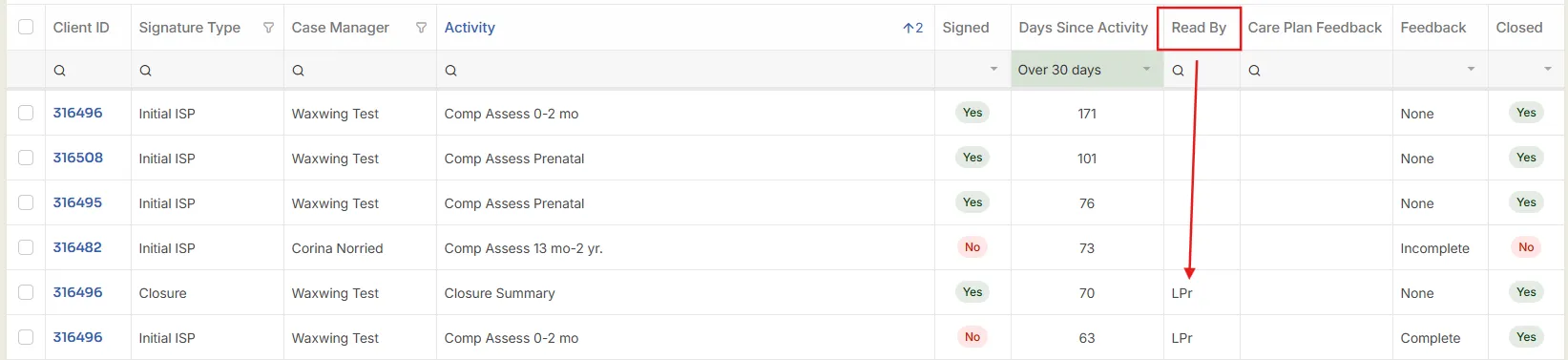
To track who marked it, show the Read By column.
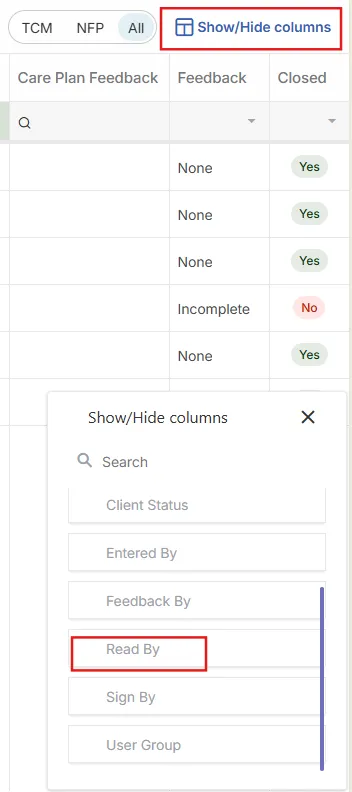
- If an assessment has been marked as read, the user's initials will be displayed in the Read By column