![Screenshot 2025-02-20 104356.png]](https://employeekb.persimmony.com/hs-fs/hubfs/Screenshot%202025-02-20%20104356.png?height=40&name=Screenshot%202025-02-20%20104356.png)
1. Check Your Permissions
-
The History button is only available if your security role includes the Activities-History permission.
-
If you do not see the History button in a client profile, contact your administrator to request access.
2. Access the History for an Assessment or Memo
-
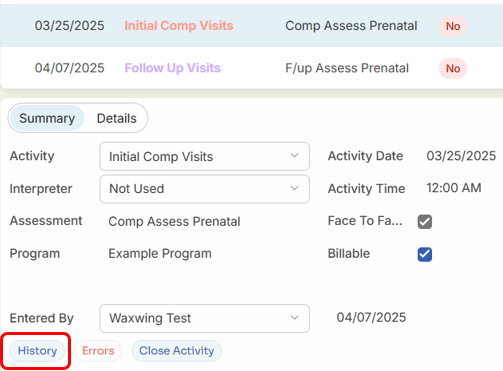
Open the Client Profile and select the assessment or memo from the Activity List.
-
Click the History button to view edit details.
3. What Edits Are Tracked?
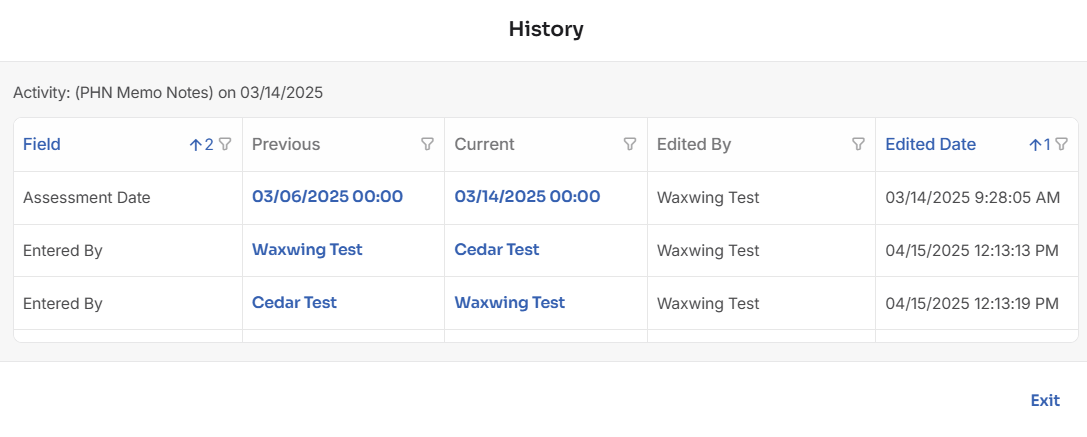
For Memos:
-
Assessment (Activity) Date
-
Entered By
For Assessments:
-
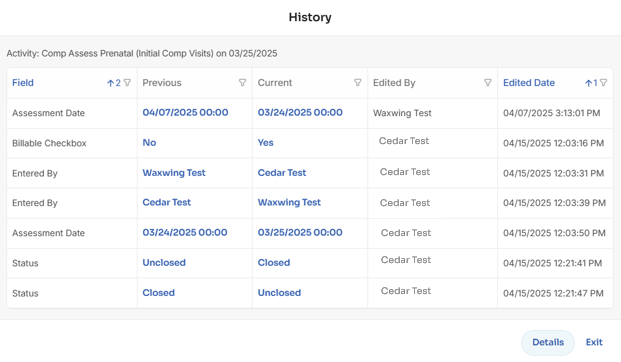
Assessment Date
-
Billable Checkbox
-
Entered By
-
Status
If a field is not displayed in the History pop-up, no edits have been made to that field.
4. Target Population Assessment
-
If you have permission to edit the Target Population assessment, you can also view its edit history using the same process.
5. View Detailed Question-Level Changes
-
In the History pop-up for an assessment, click the Details button.
-
A new tab will open showing:
-
Each topic and question within the assessment.
-
All changes made from the time the assessment was created.
-
-
To export the full edit log, click the Excel button.
